Sign in or sign up
This is the door into the platform. If you already have an account, you sign in here. If you don't, you create one in a couple of steps. The same page handles both — there's a tab to switch between Sign in and Create account at the top of the form.
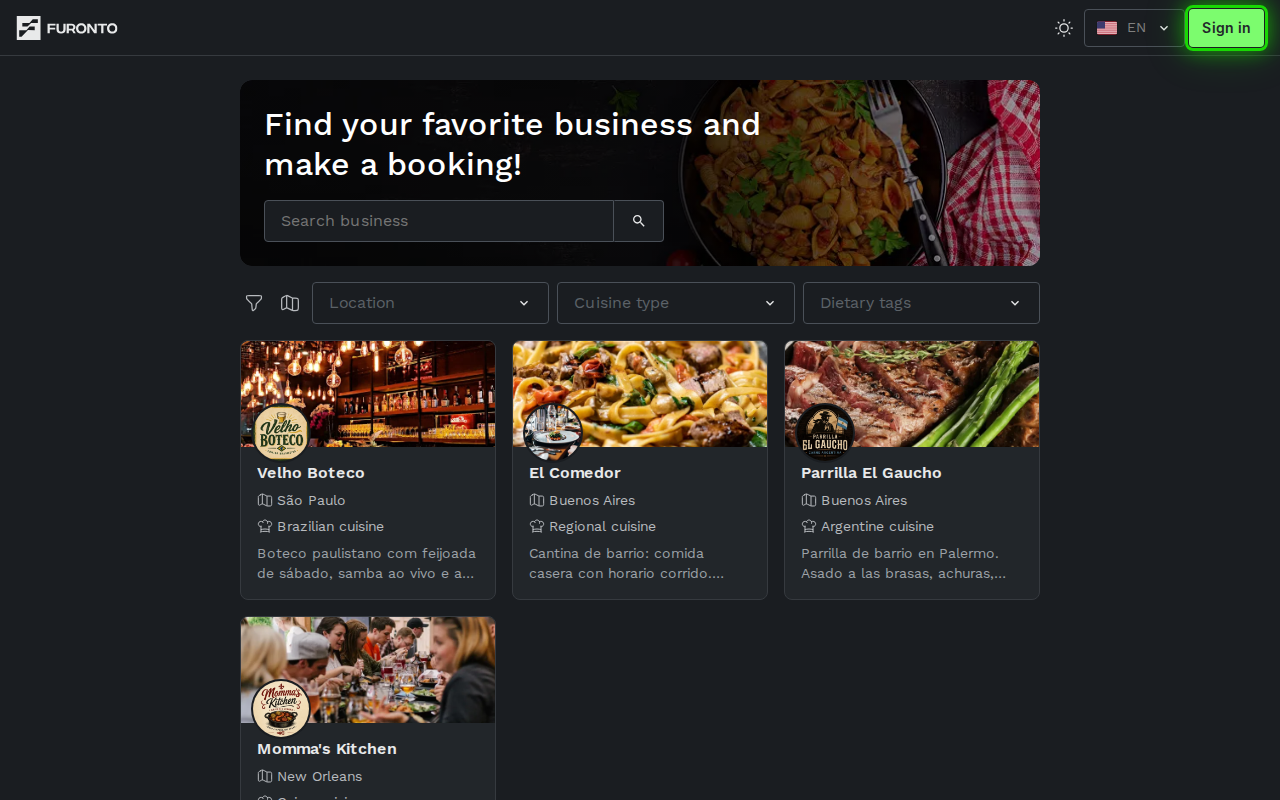
You'll land here either by clicking Sign in in the top-right of any page, or automatically when you try to open something that needs an account (like your bookings or your business dashboard).
Anyone using the platform. Customers booking a table and business owners managing their venue both go through this same page. The account you create here works for both — there's no separate "customer" or "owner" sign-up.
Getting there
Click Sign in in the top-right of any page. If you tried to open a page that requires an account, you were sent here automatically — and after you sign in, you'll be sent right back to where you were going.
How it works
The page shows a single form with two tabs at the top: Sign in and Create account. Pick the one you need — or skip straight past them with the Sign in with Google button, which appears on both tabs.
Step 1: Choose sign in or create account
If you've used the platform before, stay on the Sign in tab and enter your email and password. If this is your first time, click Create account to switch tabs and fill in your details.
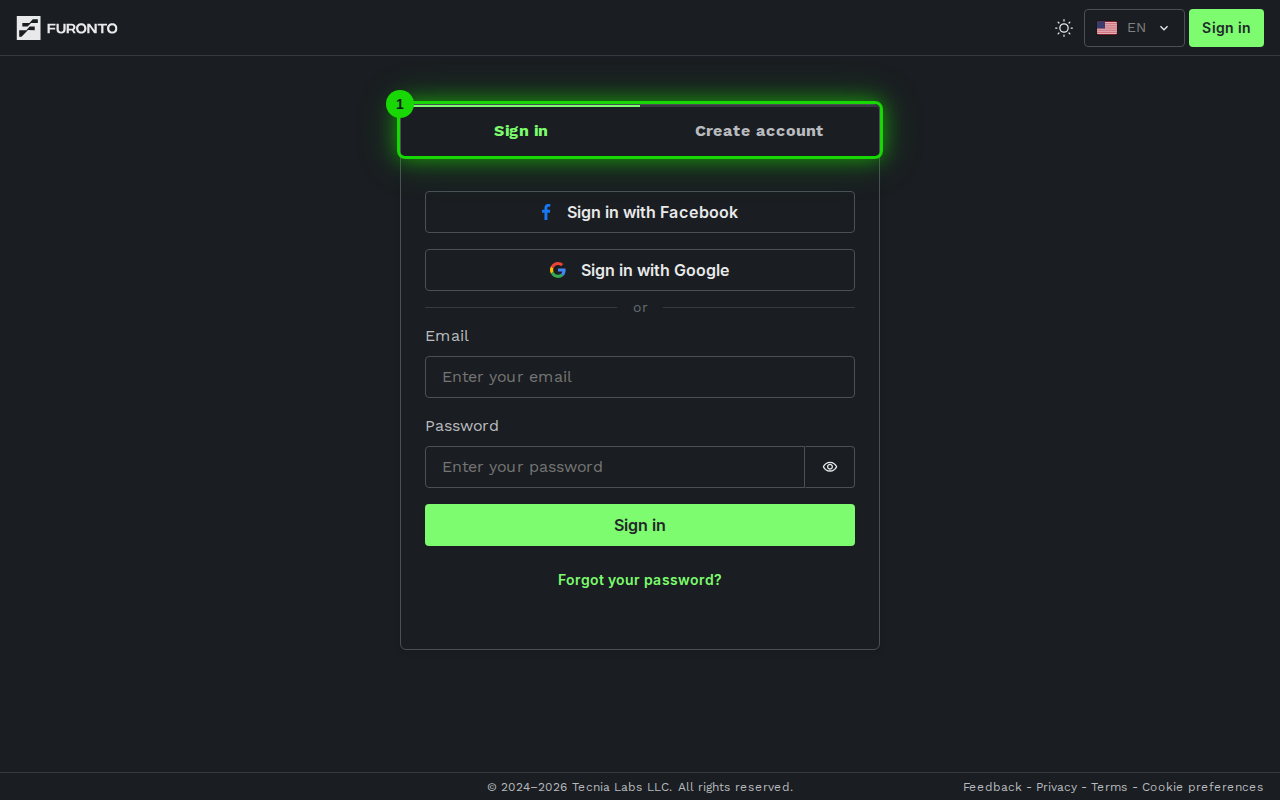
If you're not sure whether you have an account, just try Sign in first. If your email isn't recognized, you'll get an error and you can switch to Create account without losing what you typed.
Prefer to use an account you already have? Click Sign in with Google at the top of either tab — one click and you're in, with nothing new to remember.
Step 2: Enter your details
To sign in, type your email address and your password, then click Sign in.
To create an account, you'll be asked for:
- Your first name and last name
- Your email address — this is what you'll use to sign in later
- A password, then the same password again to confirm it
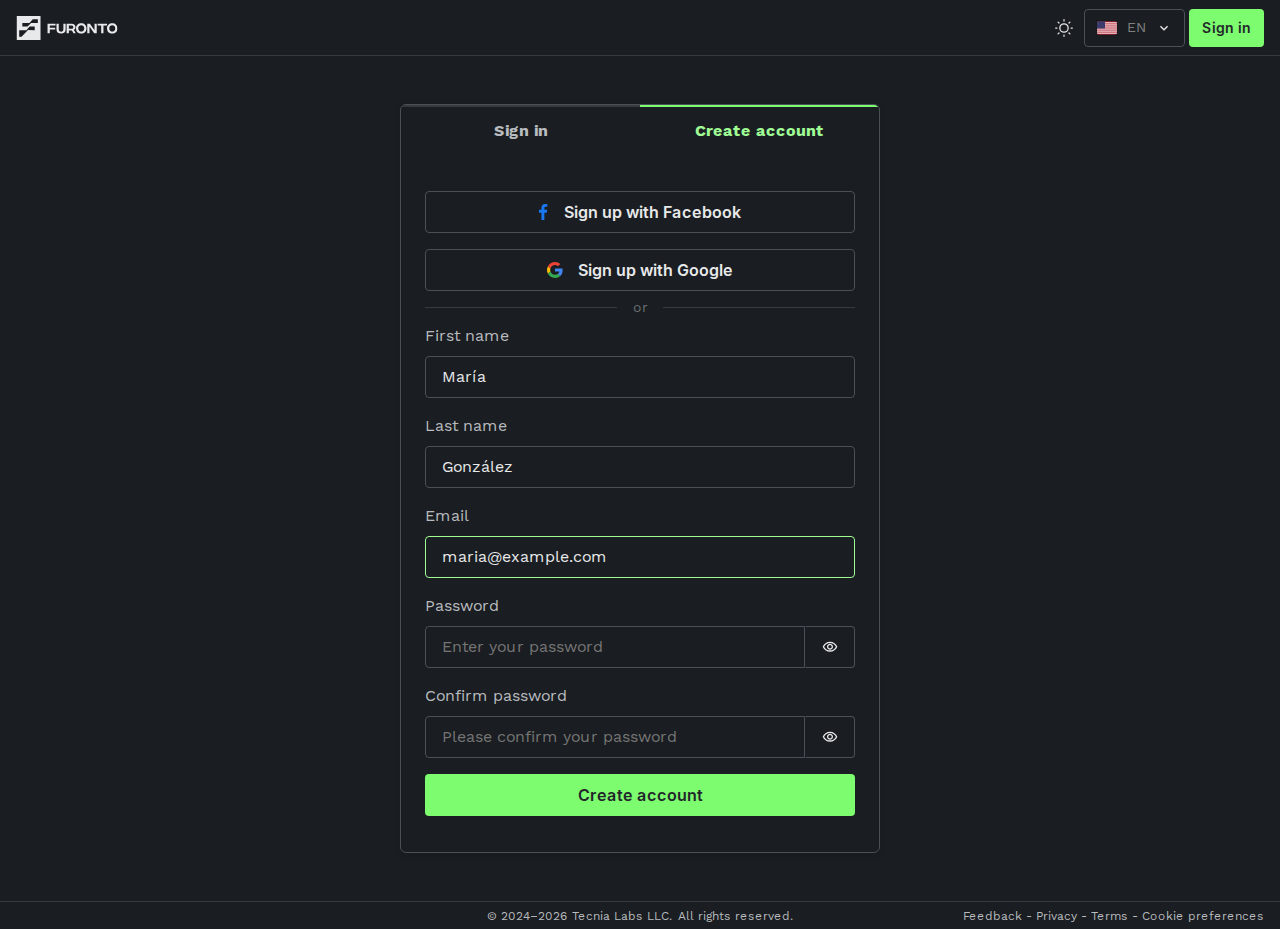
Your password needs to be at least 10 characters and include a mix of upper- and lowercase letters, a number, and a special character. The form will let you know if you're missing something before you submit.
Step 3: Verify your email (only the first time)
After you create an account, the platform sends a 6-digit confirmation code to the email address you used. Open your inbox, copy the code, paste it into the verification screen, and click Confirm. From then on you can sign in directly — no code needed.
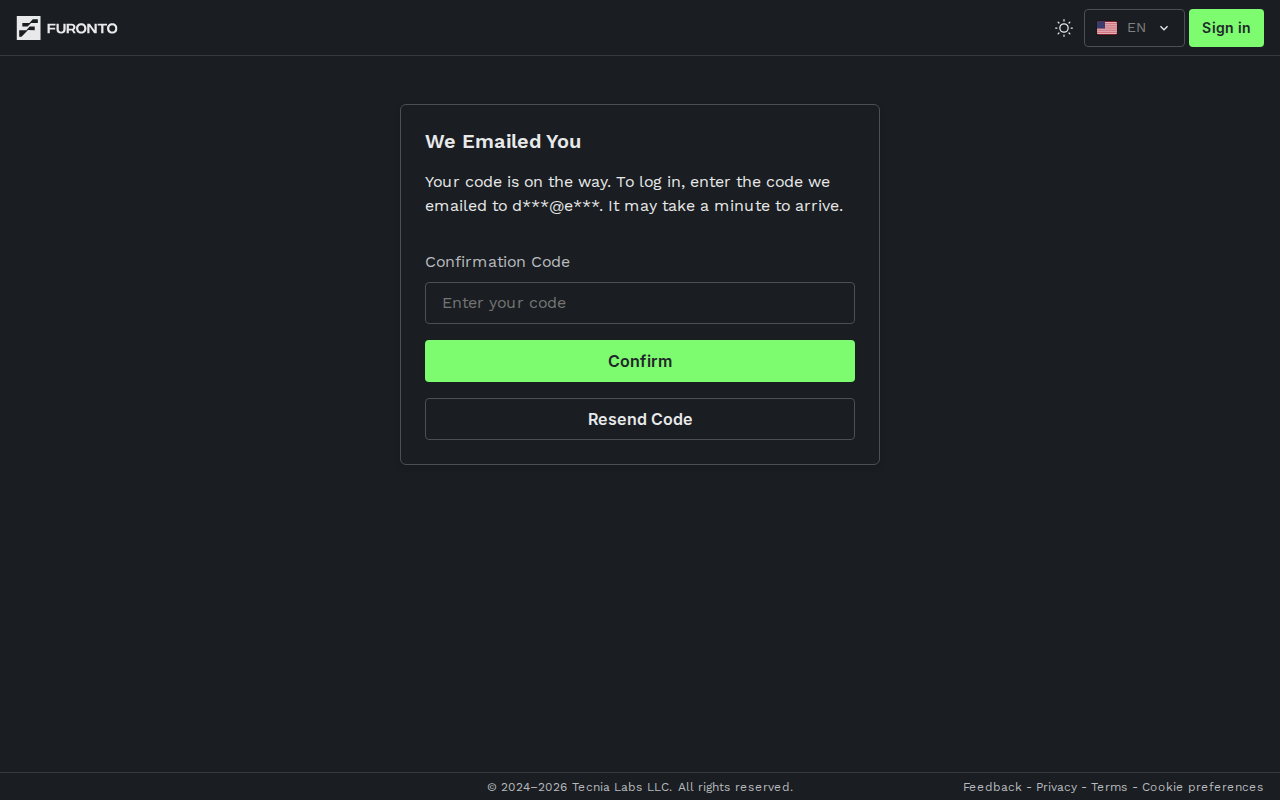
The code can take a minute to arrive. Check your spam folder if it's not in your inbox after a couple of minutes — confirmation emails sometimes get filtered.
Step 4: You'll go where you started
If you arrived here from a link that needs an account (for example, you clicked Book on a business page or tried to open your dashboard), you'll be sent right back to that page after you sign in. If you came here directly, business owners and staff land on the dashboard and customers land on My bookings.
Tips and best practices
- Use an email you check often — Booking confirmations, password reset links, and verification codes all go to the email on your account.
- Pick a password you'll remember — There's no "remember me" toggle yet. If you forget your password, you can reset it, but a stable password saves you the round trip.
- Don't create a second account by mistake — If you sign up with a different email than the one you used last time, you'll end up with two separate accounts and your booking history will live on whichever one you used at the time. When in doubt, use Forgot password before creating a new account.
- Sign in once per device — Your session stays open in the browser. You only need to sign in again if you sign out, clear your cookies, or your session expires after a long break.
Troubleshooting
"I forgot my password"
Solution: Click Forgot password? below the Sign in form. Type the email address on your account, and the platform will email you a reset code along with a screen to set a new password. The link works for a limited time, so use it soon after it arrives.
"I never received the verification email"
Solution: Check your spam or junk folder first — confirmation codes sometimes end up there. If it's still missing after a few minutes, click Resend code on the verification screen. Make sure you typed your email address correctly when you signed up; a typo means the code went to the wrong inbox and you'll need to start the sign-up again with the correct email.
"I'm getting an 'incorrect username or password' error"
Solution: Double-check the email address — it has to match exactly what you used to sign up, including the part before the @. Passwords are case-sensitive, so make sure caps lock isn't on. If you're still stuck, use Forgot password? to reset it.
"I can't sign in after signing up"
Solution: You probably haven't entered the verification code yet. New accounts have to be confirmed with the 6-digit code we email you before they can sign in. Open the most recent email from us, copy the code, and finish the verification step. If you closed that screen, just try to sign in — you'll be sent back to the verification step automatically.
"I created two accounts with different emails"
Solution: Sign in with whichever email has your bookings or business on it. There's no way to merge accounts right now. If you're unsure, sign in with each one and check My bookings or your dashboard to see which has the data you want.
Related pages
- Your profile — Edit your name, email, and account details after you sign in
- My bookings — See every booking you've made across the platform
- Find a business — Browse and book once you're signed in