Home
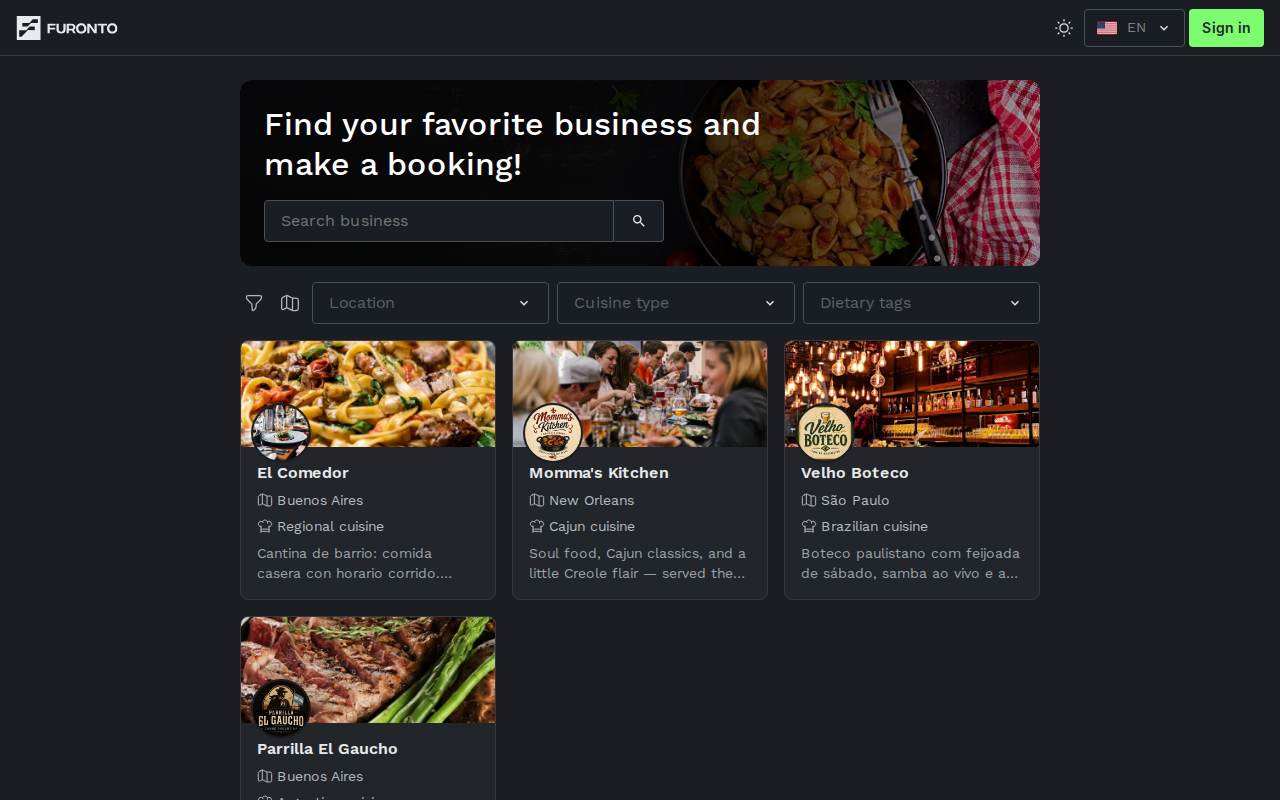
The home page is your starting point for finding a place to book. Browse the businesses on the platform, narrow them down with filters, or sort by distance to discover what's near you right now.
Anyone visiting the platform — you don't need an account to browse. Customers use this page to find a venue, and business owners can browse it too to see how their listing looks alongside others.
Getting there
The home page is the first thing you see when you open the platform. You can always come back to it by clicking the logo in the top-left corner of any page.
How it works
The page has three main parts: a search bar at the top inside the hero banner, a row of filters just below it, and a grid of business cards taking up the rest of the screen. Use them in any combination to find what you're looking for.
Step 1: Search by name
Type a business name into the Search bar in the hero banner. The list updates as you type — there's no need to press enter. To clear what you've typed, click the small x inside the search field.
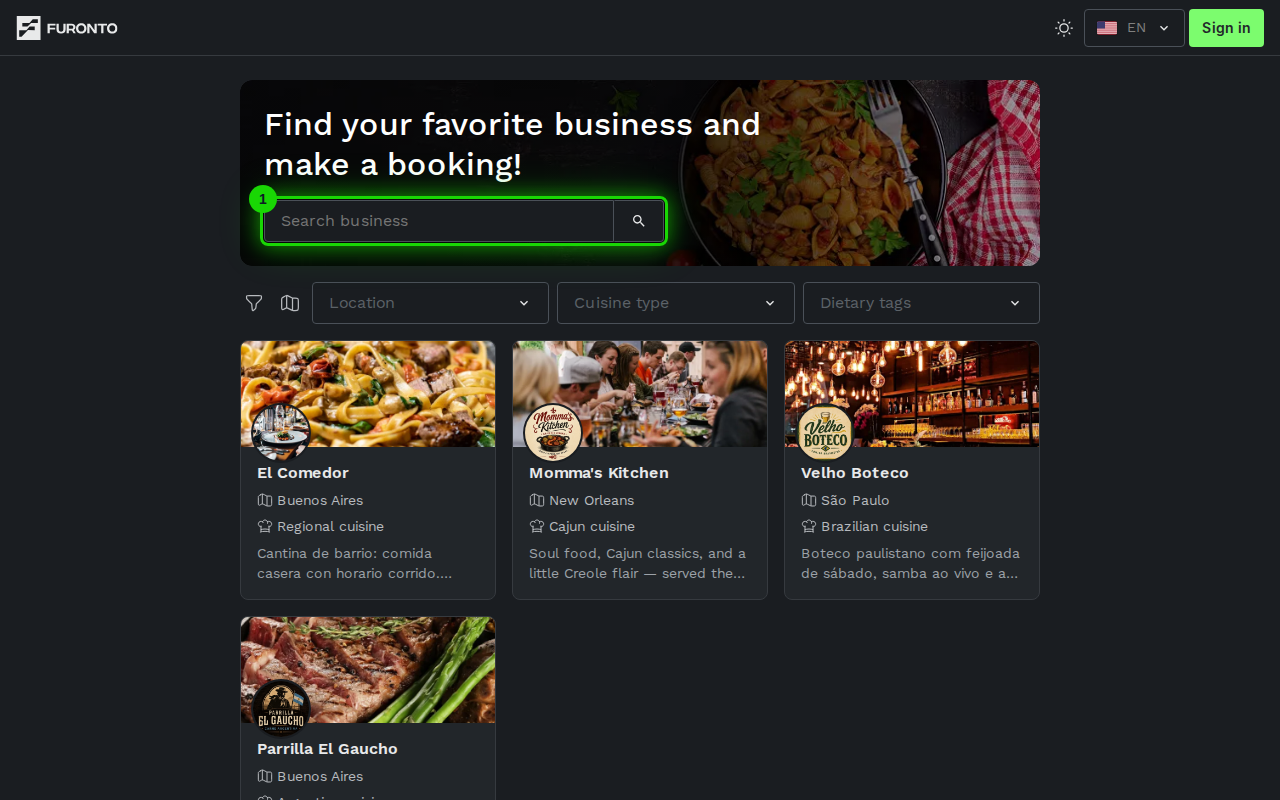
The search matches the business name as you type, so even a couple of letters is enough to find a venue if you don't remember the full name.
Step 2: Filter by location, cuisine, or dietary tags
Below the hero banner there are three dropdown filters: Location, Cuisine type, and Dietary tags. Click any of them to pick one or more options. The grid updates instantly to show only the businesses that match.
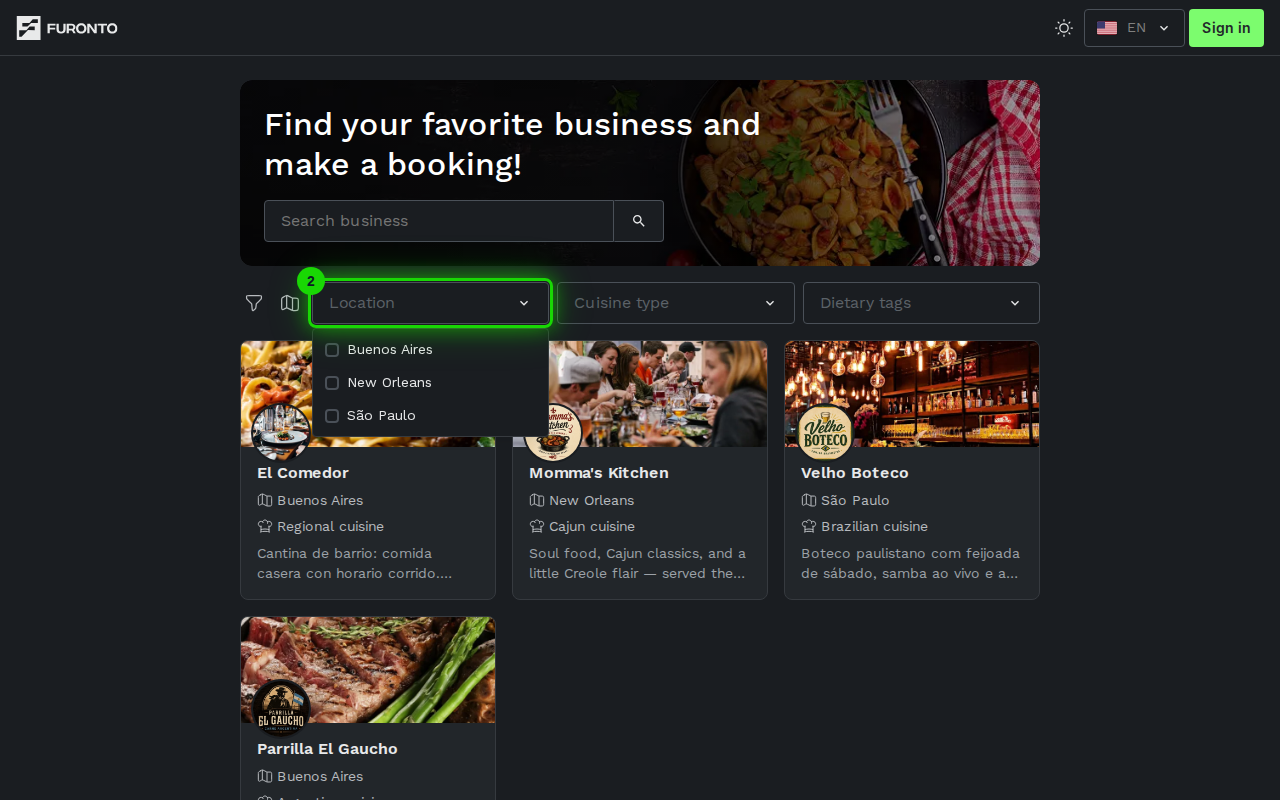
The options inside each filter come from the businesses currently on the platform. If a city or cuisine doesn't appear, no business has tagged itself with it yet.
Step 3: Sort by distance
Click the map pin button next to the filter icon to sort businesses by how close they are to you. Your browser will ask for permission to share your location — accept it, and the cards reorder with the nearest venues first. Each card shows an approximate distance.
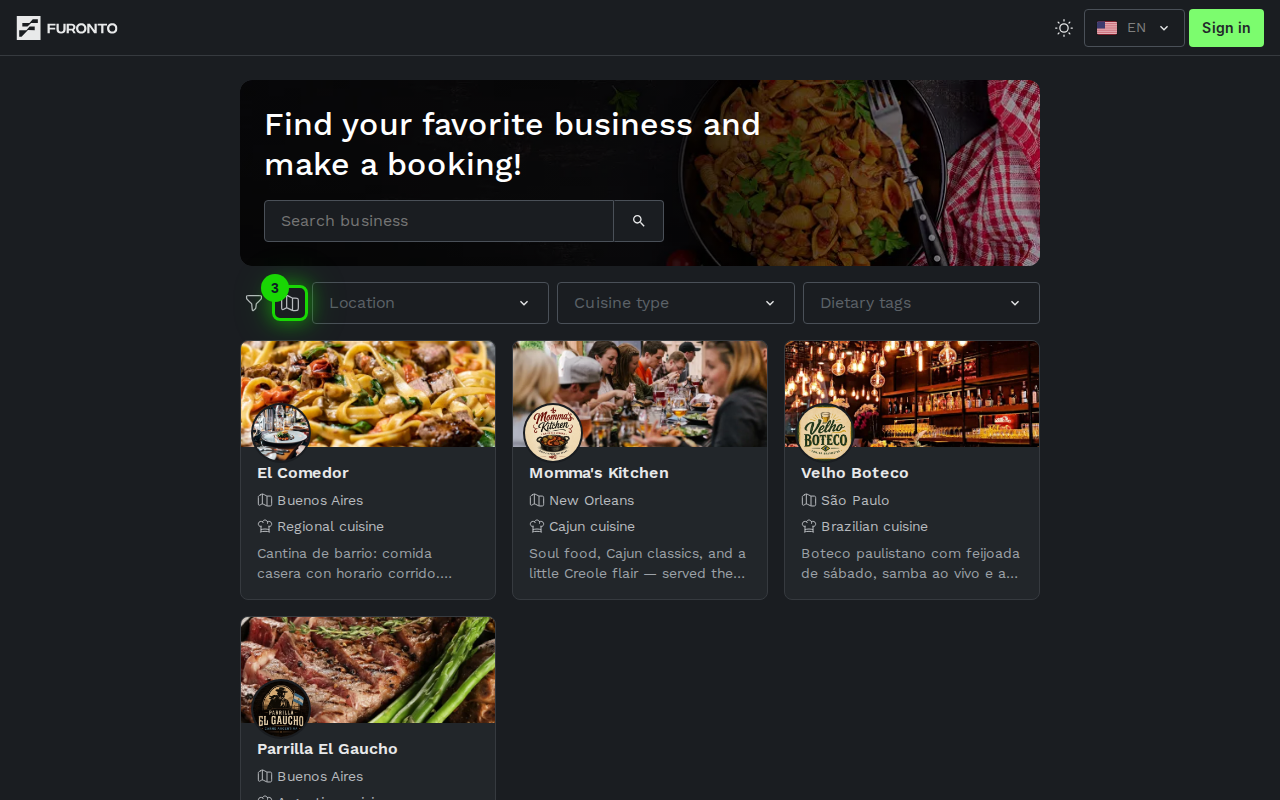
Distance sort works best on a phone or laptop with location services on. If you don't want to share your location, just skip this step — the page works perfectly without it.
Step 4: Clear filters and start over
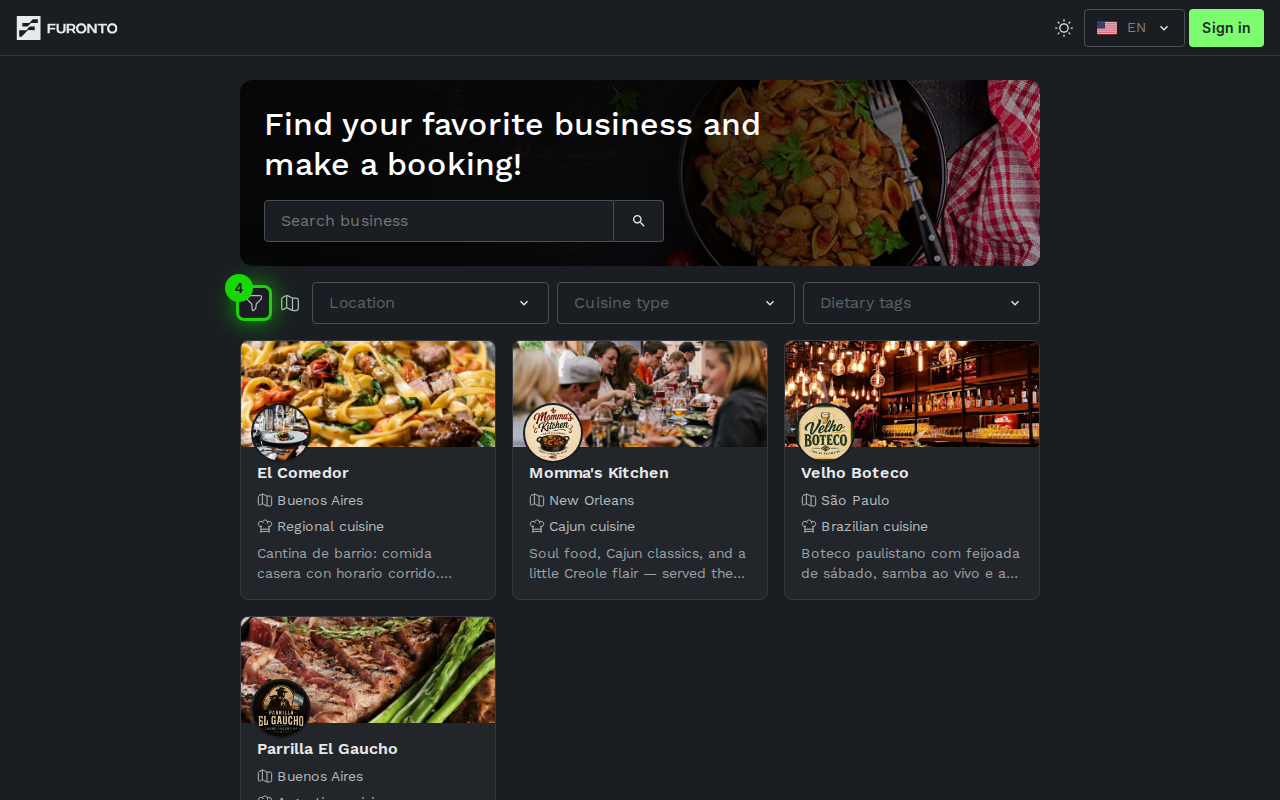
If you've selected a few filters and want to start fresh, click the filter icon (it turns into a clear icon when filters are active) at the start of the filter row. All filters reset and the full list comes back.
Step 5: Open a business
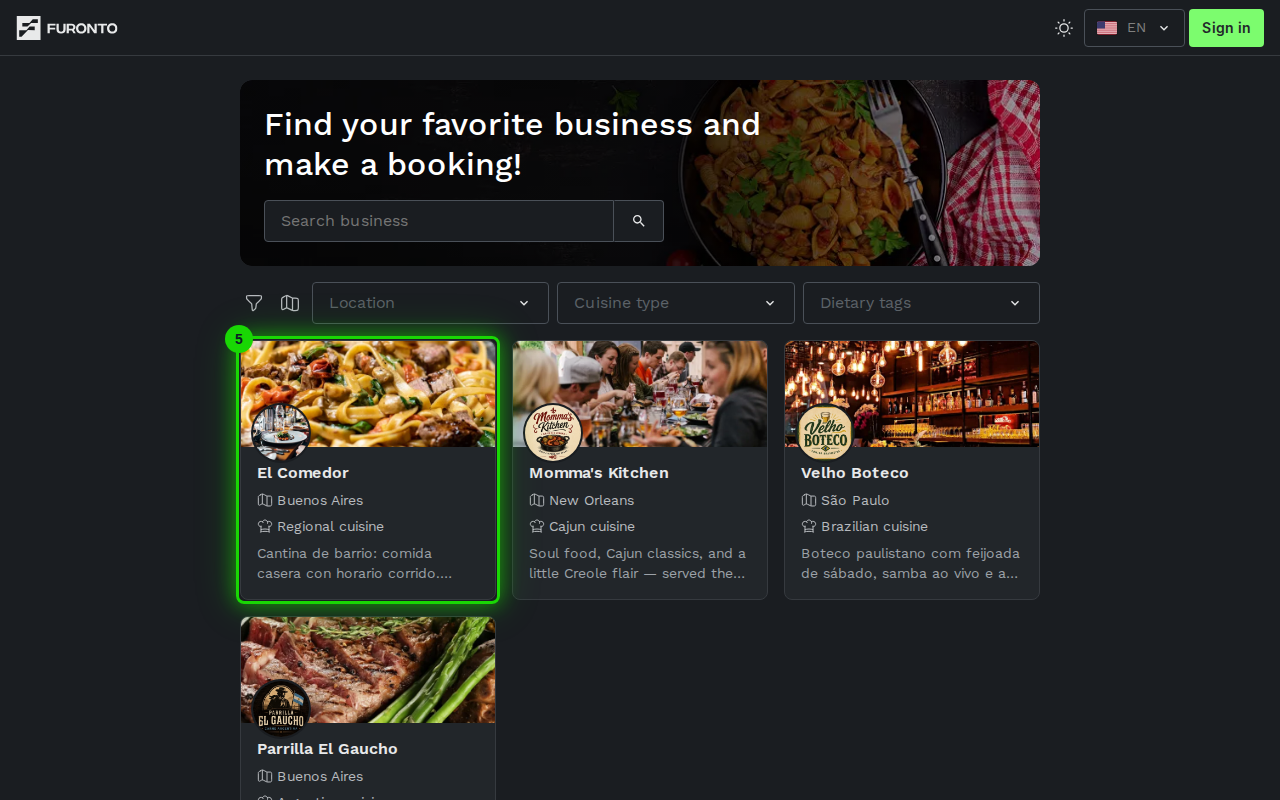
When you find a place you like, click anywhere on its card to open the business profile. From there you can see photos, opening hours, and start a booking.
Tips and best practices
- Combine filters for a sharper match — Pick a location and a cuisine together to find exactly the kind of place you're after.
- Browse with no filters first — Sometimes the best discovery happens by scrolling through everything. Use the pagination at the bottom to flip through pages.
- Sign in for a faster booking — You can browse without an account, but signing in means your details are saved when you go to book.
Troubleshooting
No results showed up
Solution: Your filters might be too narrow. Click the clear filters button at the start of the filter row to reset everything, then try a broader search.
Distance sort isn't working
Solution: Your browser needs permission to share your location. Check your browser's site permissions and allow location for this site, then click the map pin button again.
A business I expected to see isn't here
Solution: Only businesses that have completed their setup and published their profile appear here. If you know the business directly, you can still visit their page using their link.
Related pages
- Business profile — What you see when you open a business
- Book — Pick a date, time, and party size to reserve