Booking confirmed
You're all set. Once your booking goes through, this page greets you with a green check, a quick recap, and a single button to take you straight to your bookings — so you can keep what you need and close the tab.
Customers who just finished the booking flow. This is the last screen of the booking journey. You don't need to do anything here unless you want to review your booking right away.
What you'll see
A clean, focused screen with a green circle and a check icon, the words Booking confirmed, a short reassuring message, and a single primary action: View in my bookings. No forms, no decisions left to make — the work is done.
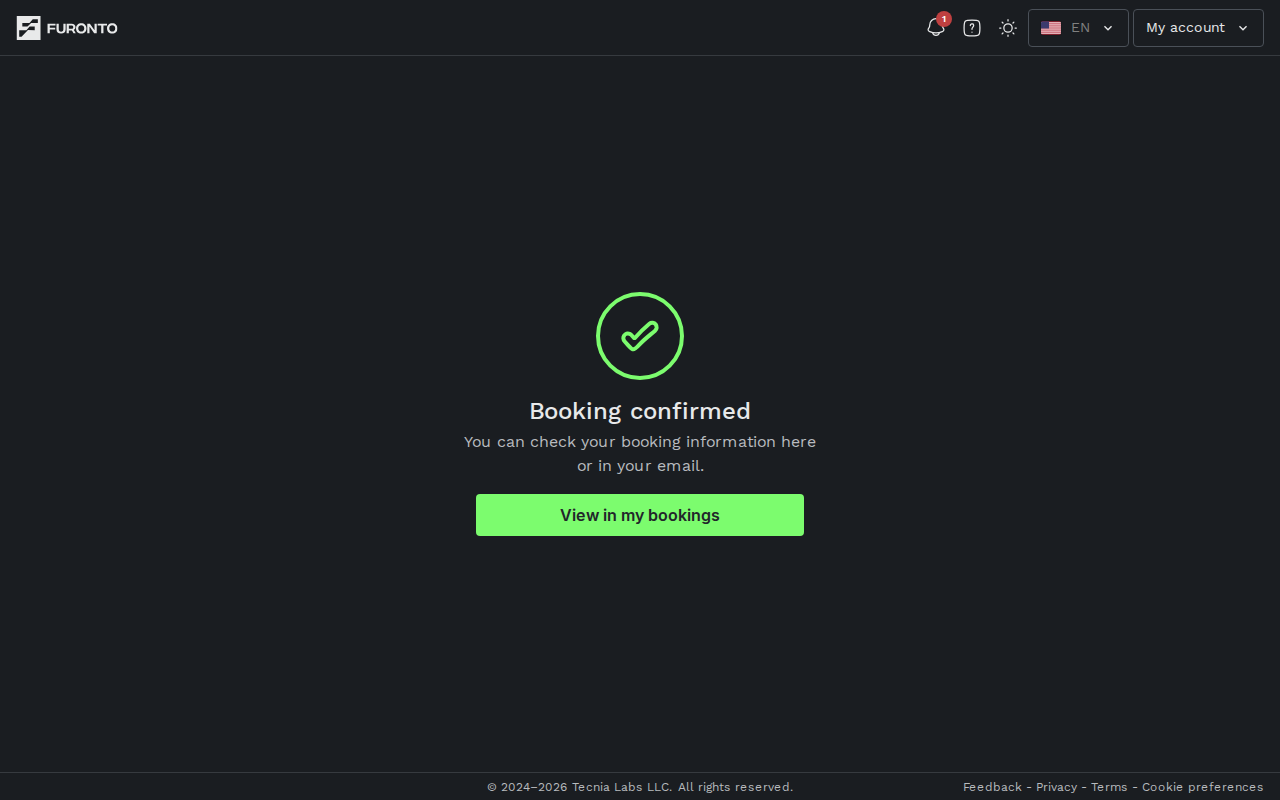
A confirmation email is also on its way. The on-screen message says it: "You can check your booking information here or in your email." If the venue has any pre-arrival instructions, those usually arrive in that email too.
What's on this page
Booking details
The page is intentionally minimal. The full details — date, time, party size, venue, status, and any guarantee information — live one click away on the My bookings page. The button at the bottom takes you there with your fresh booking already highlighted, so you don't have to hunt for it.
Status tag
Your booking lands with a status of Pending or Confirmed, depending on the venue's policy. Most venues auto-confirm; a few prefer to review each booking before locking it in. Either way, you'll see the status pill clearly on the My bookings card the moment you arrive there.
Next steps
There's only one button: View in my bookings. It deep-links to your bookings list with the new booking pre-selected, so you can verify the details, edit them if needed, or cancel within the free-cancellation window. No additional steps are required from this screen.
Tips and best practices
- Save the confirmation email — It contains the same details as My bookings plus any venue-specific notes (parking, dress code, allergies follow-up). Keeping it makes it easy to forward to whoever's joining you.
- Bookmark My bookings — Once you're a regular, the My bookings page is the only stop you'll need. From there, you can edit, cancel, or rebook in a couple of taps.
- Check the time before you go — A quick glance at the booking the morning of your visit catches any last-minute changes (pending confirmations, status updates from the venue) before they become a surprise.
Troubleshooting
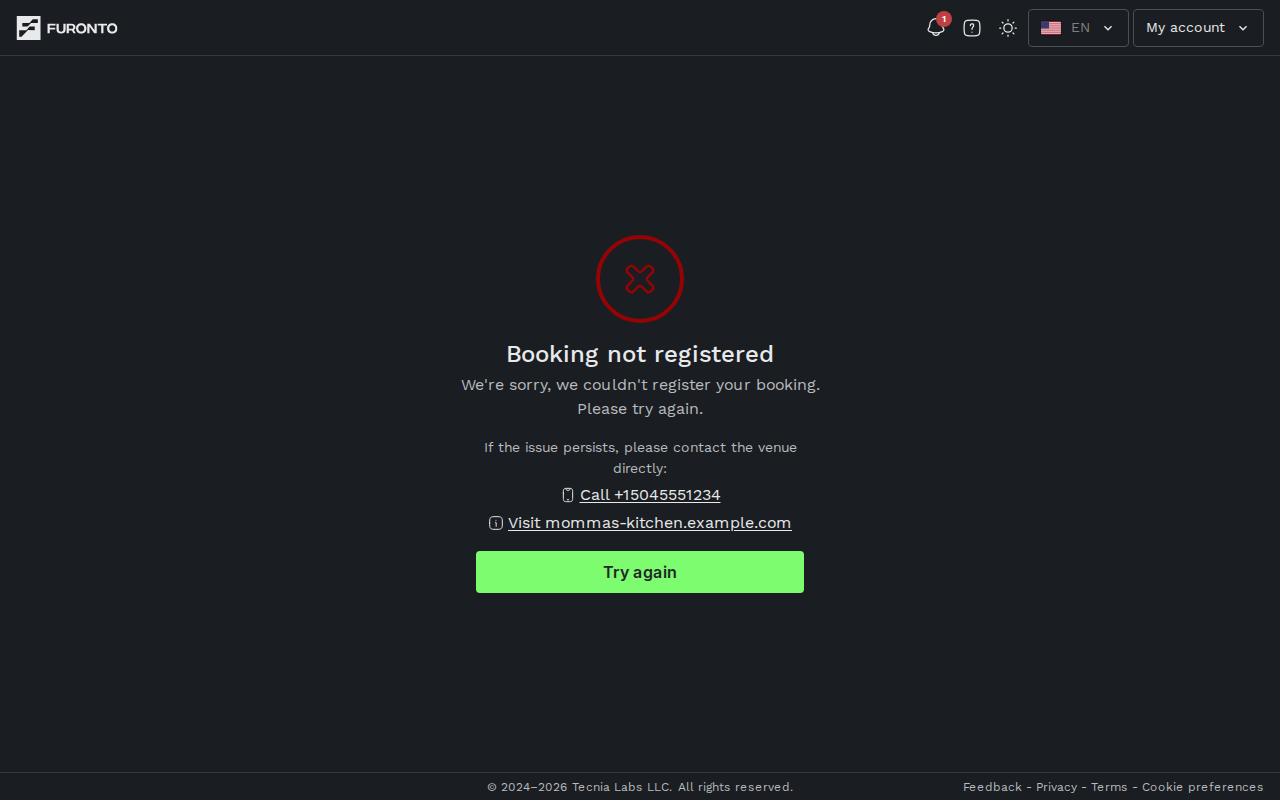
If something failed on the way here, the same route also serves as the failure screen. Instead of the green check, you'll see a soft error icon, the title Booking not registered, an apology, the venue's phone and website (when they're listed, so you can reach out directly), and a Try again button that takes you back to the venue's profile so you can re-pick a date and time.
"I expected an email but didn't receive one"
Solution: Check your spam or promotions folder first — confirmations sometimes land there on a fresh inbox. The booking itself is safe regardless: open My bookings to see all the details. If you still don't see an email after a few minutes and the venue advertised confirmations, contact them directly through the phone or email shown on their profile.
"The page shows an error instead of success"
Solution: The booking didn't go through, so nothing was reserved or charged. Click Try again to return to the venue, pick your slot one more time, and re-confirm. If it fails twice in a row, the most common cause is a connection drop or a payment method issue — switch networks or pick a different card before the third attempt.
"I closed the tab before clicking View in my bookings"
Solution: No problem. Open My bookings from the top navigation (or visit /my-bookings) and your new booking will be at the top of the upcoming list.
"The green check appeared but I'm not sure if anything was charged"
Solution: When the venue requires a guarantee, the charge is an authorization hold, not a real payment — the funds are reserved on your card and released automatically when you visit. My bookings shows the exact amount and the free-cancellation deadline so you always know where you stand.
Related pages
- My bookings — Review, edit, or cancel your booking
- Make another booking — Start a new booking flow
- Confirm — The previous step where you reviewed your details