Business profile
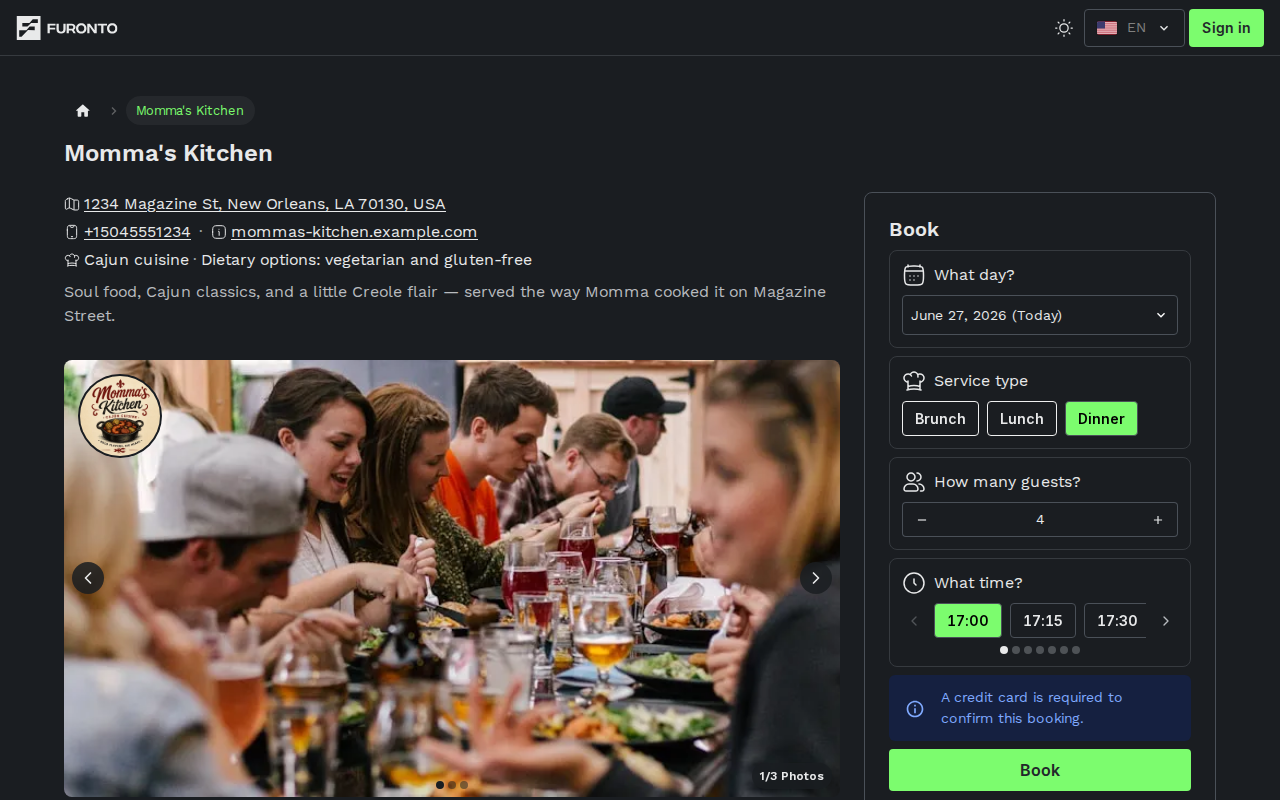
The business profile is where you decide if a place is right for you and book your table. Photos, location, contact details, upcoming events, and the booking form all live on a single page so you don't have to jump around.
Anyone with the link. This page is public — you don't need an account to view it. You'll only be asked to sign in when you're ready to confirm a booking.
Getting there
You usually arrive here by clicking a business card on the home page, but the page also works as a direct link. Every business has its own short URL — for example /la-trattoria — so the link can be shared on social media, in messages, or saved as a bookmark.
How it works
The page is split into two columns. On the left you'll find everything about the venue — its name, location, contact info, photos, and any upcoming events. On the right you'll find the booking form, which stays visible as you scroll on larger screens.
Step 1: Read the business details
At the top of the left column you'll see the business name as the heading, followed by a row of small icons with the venue's information:
- Map pin — the address. Click it to open the location in Google Maps in a new tab.
- Phone — tap or click to call directly from your device.
- Globe — the business website, if they have one.
- Chef hat — the cuisine type and any dietary tags (vegetarian, gluten-free, etc.).
A short description written by the owner sits below the icons.
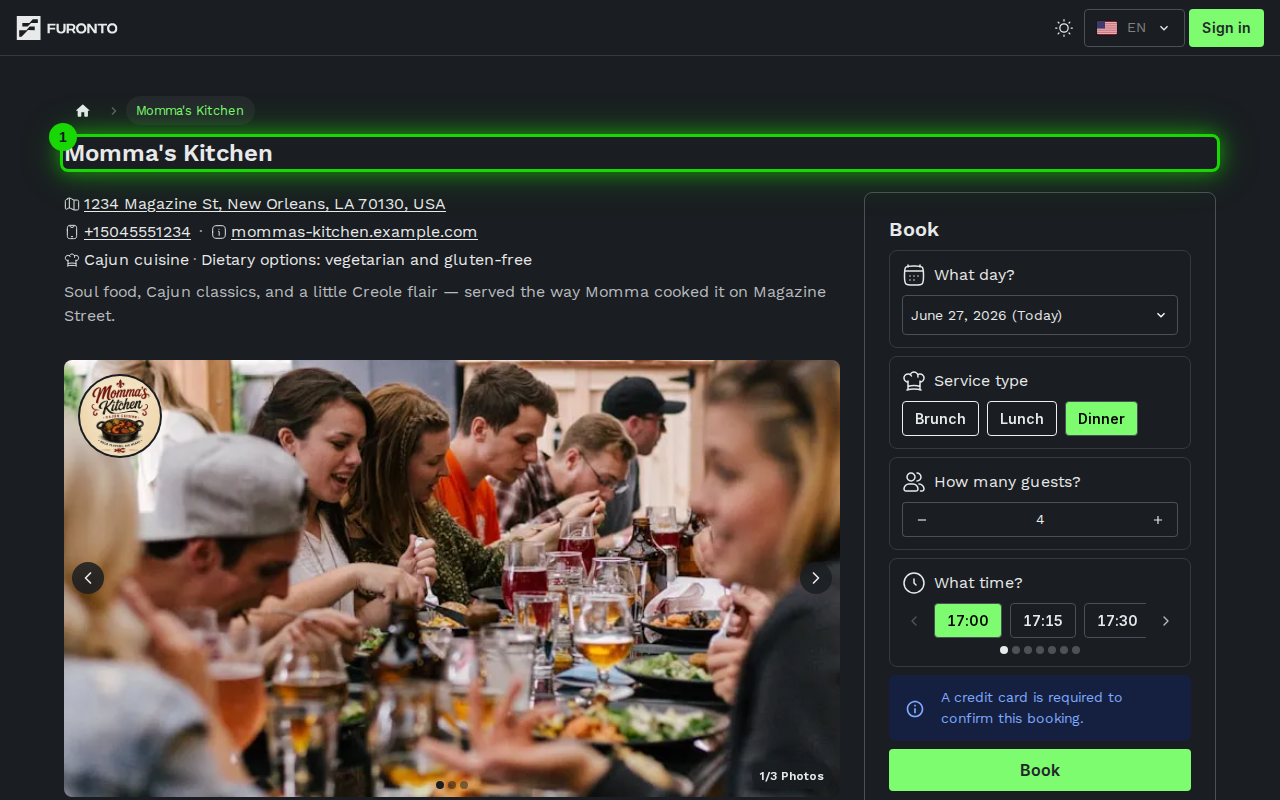
Clicking the address opens the venue on Google Maps with the exact pin already placed, which is the easiest way to get directions or check the neighborhood before booking.
Step 2: Browse the photo gallery
Below the details you'll find the photo gallery showing the inside, the dishes, or whatever the owner chose to feature. Use the arrows on either side or the dots below the image to move between photos. The counter in the corner tells you which photo you're on (for example, 2/5 Photos).
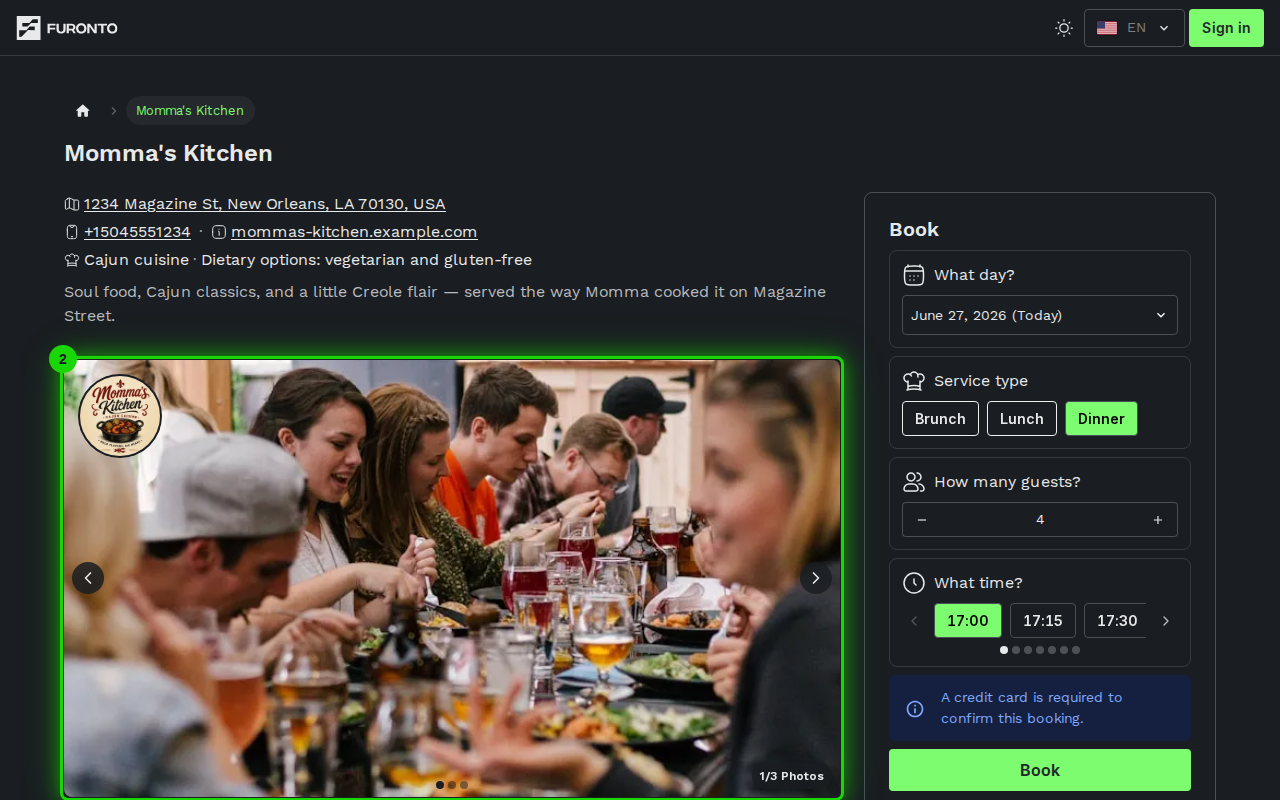
The gallery loops, so you can keep clicking forward and the photos start over from the first one.
Step 3: Check upcoming events
If the venue has any upcoming events — a tasting menu night, a special chef's dinner, a themed evening — you'll see them in their own section as cards. Each card shows the event name, date, time, a short description, and how many seats are still available. Click a card to open the event's dedicated page and book a seat there.
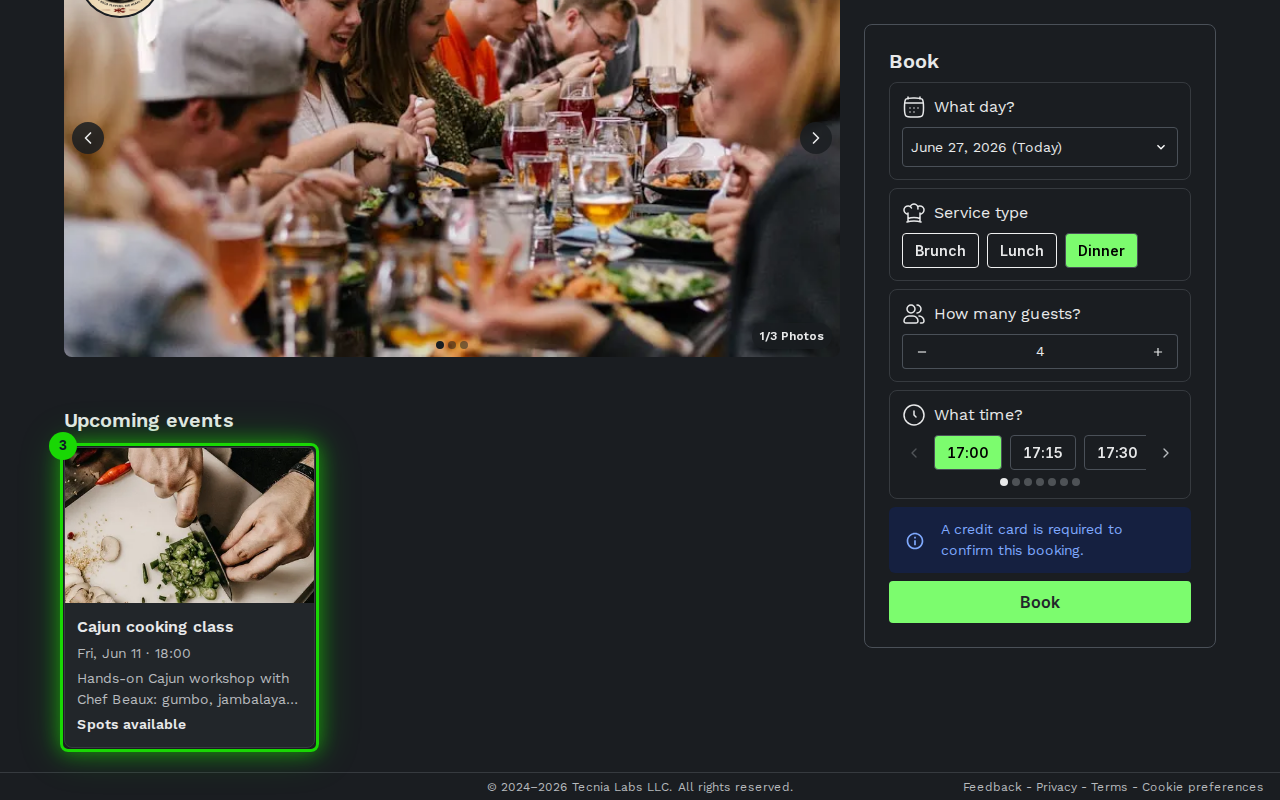
Events are sorted with the soonest first. If a card says Event full, that date is already booked out — try the next event in the list.
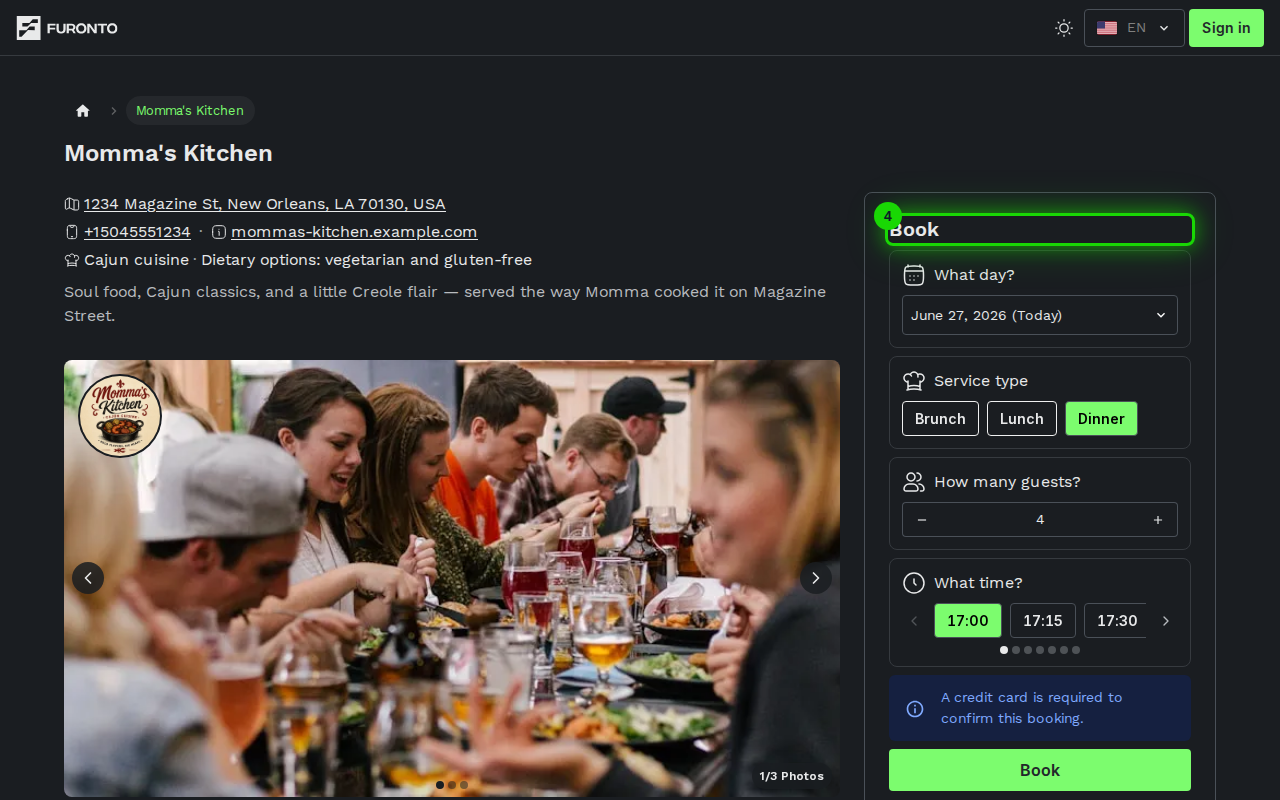
Step 4: Use the booking form
The right column always shows the Book card. Pick what you need step by step — the form updates as you go.
- What day? — Use the date picker to choose a date. You can only pick dates the business accepts bookings for.
- Service type — Pills like Lunch, Dinner, or Brunch. Pick the one that matches when you want to come. Services whose hours have already ended for the chosen day aren't listed; ones that are still on but full stay listed in grey, for the waitlist.
- How many guests? — Use the + and − buttons to set your party size.
- What time? — Once date, service, and party size are set, the available start times appear. Pick the one you want.
- Choose your menu / Extras — Last on the card, if the business offers a fixed menu or add-ons. Required choices behave like a single-pick group; extras can be combined. They come after the party size because the quantities have to cover every guest.
Tap the small arrow next to a menu or extra to read its full description and price before adding it. The price shown after the / means per person — for example $25/pp is twenty-five dollars for each guest in your party.
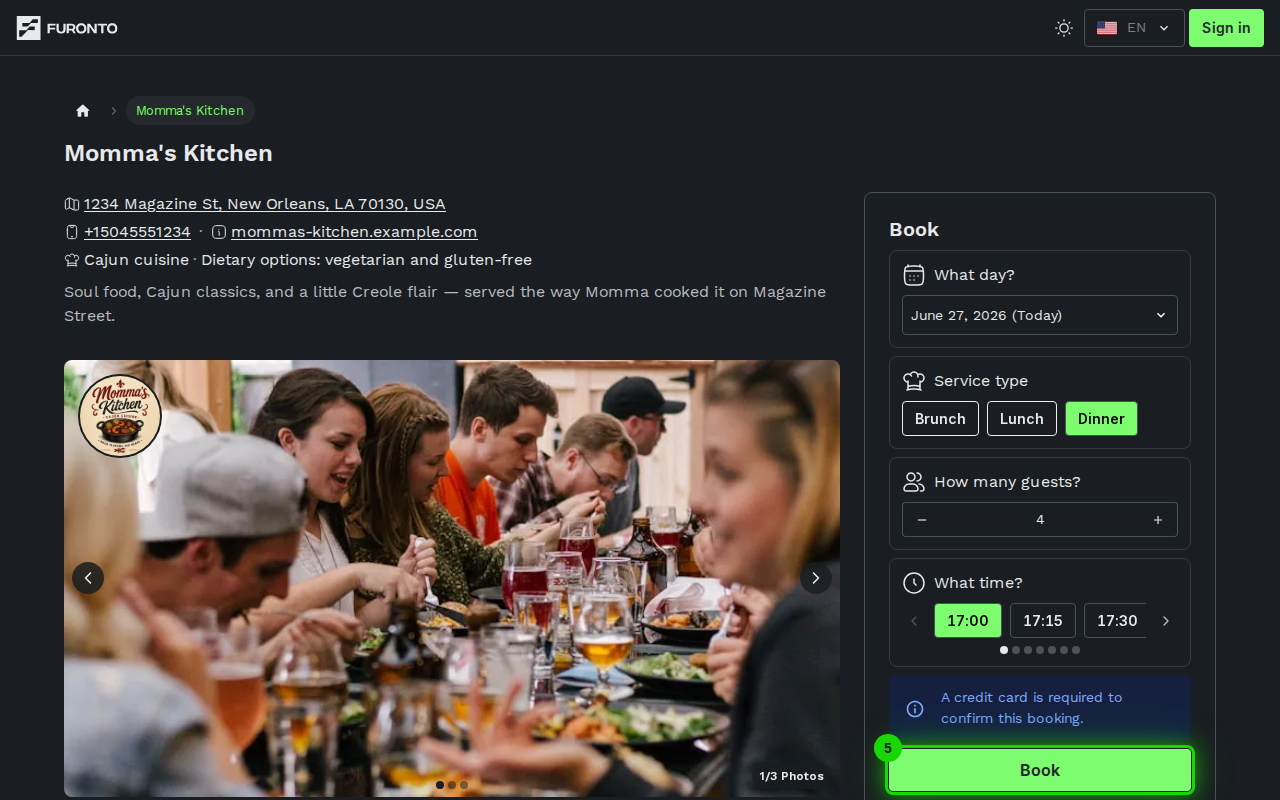
Step 5: Click Book to continue
Once you've picked a date, service, party size, and time, the green Book button at the bottom activates. Click it to move on to the confirmation page where you'll review the details and finalize the reservation.
Tips and best practices
- Read the description first — A good description tells you the venue's specialty and atmosphere, which often matters more than the photos when picking a place.
- Try a different service type if there are no times — A venue may be full for dinner but still have brunch slots open the same day. Switching service types is faster than changing the date.
- Adjust the party size before the time — Time slots are filtered by your group size, so set how many guests you have first to see only the slots that actually fit.
- Use events for special occasions — Birthdays, anniversaries, or themed nights are usually run as events with their own seat count, so booking through the event card makes sure your table is part of that experience.
Troubleshooting
No times show up for the date I picked
Solution: The service type you've selected may be sold out or closed that day. Try another service type pill, or pick a different date — the form updates instantly. If the pills you expected aren't there at all, those services have already finished for that day; move to a later date to get them back.
The booking form is empty or stuck on loading
Solution: The page is still fetching the business's setup. Give it a few seconds. If it stays empty, refresh the page — the cached data will be replaced.
My party is bigger than the form allows
Solution: The booking form caps party size at what the venue can seat at one table or a combination of tables. For larger groups, call the business directly using the phone icon at the top of the page.
The book button stays grayed out
Solution: All four fields — date, service type, party size, and time — must be filled in. Scroll up and check that each one shows a green pill or a selected value, then try again.
Related pages
- Find a business — Browse and discover venues
- Confirm your booking — Review and finalize the reservation
- My bookings — See and manage your reservations