My bookings
Every booking you've ever made on the platform lives here, no matter which business it was at. Upcoming visits sit at the top, ready to edit or cancel; past visits stay below for reference and easy rebooking.
Authenticated customers. Anyone who has booked at least once can use this page to keep track of where they're going and where they've been.
Getting there
You'll need to be signed in. Click your account in the top navigation and choose My bookings, or visit /my-bookings directly.
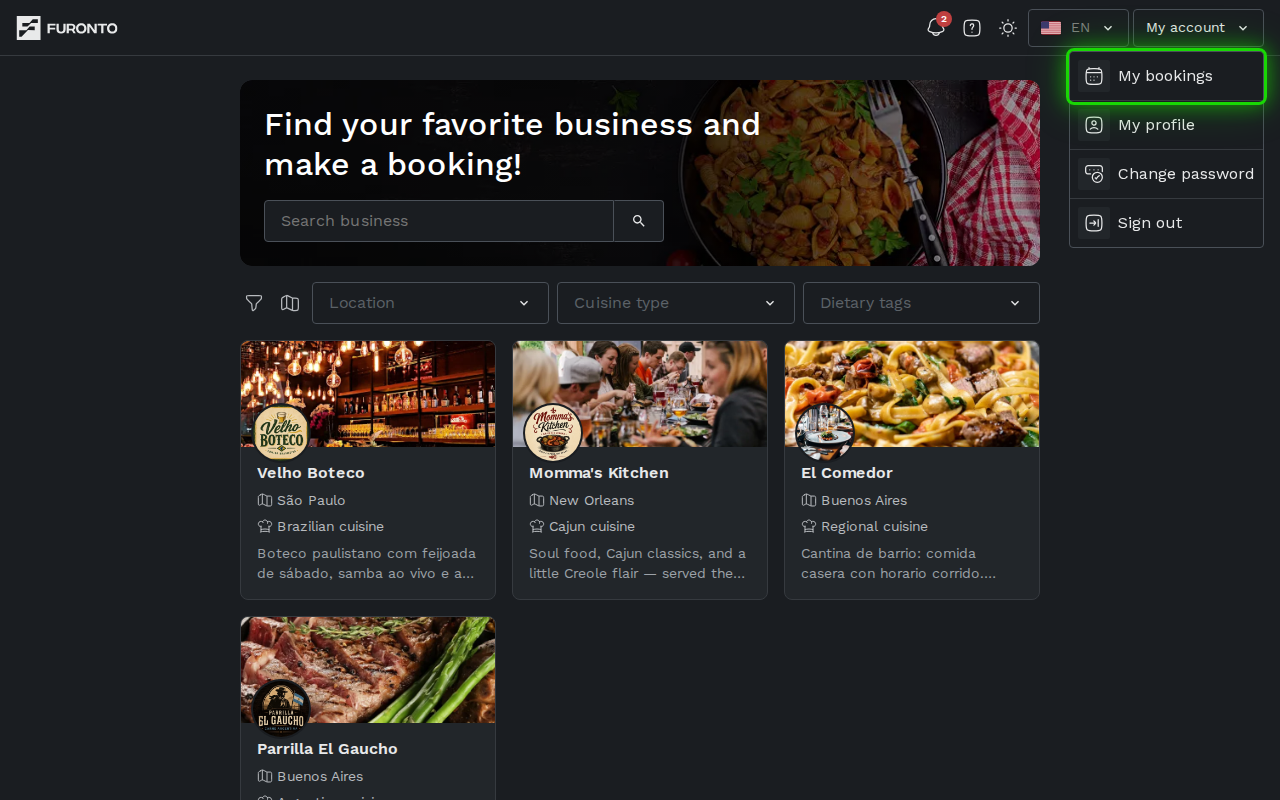
If you're not signed in yet, you'll be sent to the login page first and brought right back once you sign in.
How it works
Each booking is shown as a card with the venue's photo, name, location, your party size, the date and time, and a coloured status pill. Future bookings are sorted earliest-first; past bookings come after, most recent first. When you have lots of bookings, a pager appears at the bottom to step through them.
Step 1: Filter by year, business, or status
Above the list you'll find three filter dropdowns. Pick a Year, a Business, or one or more Status values to narrow things down. The funnel button on the left turns into a clear-filters shortcut once you have any filter active.
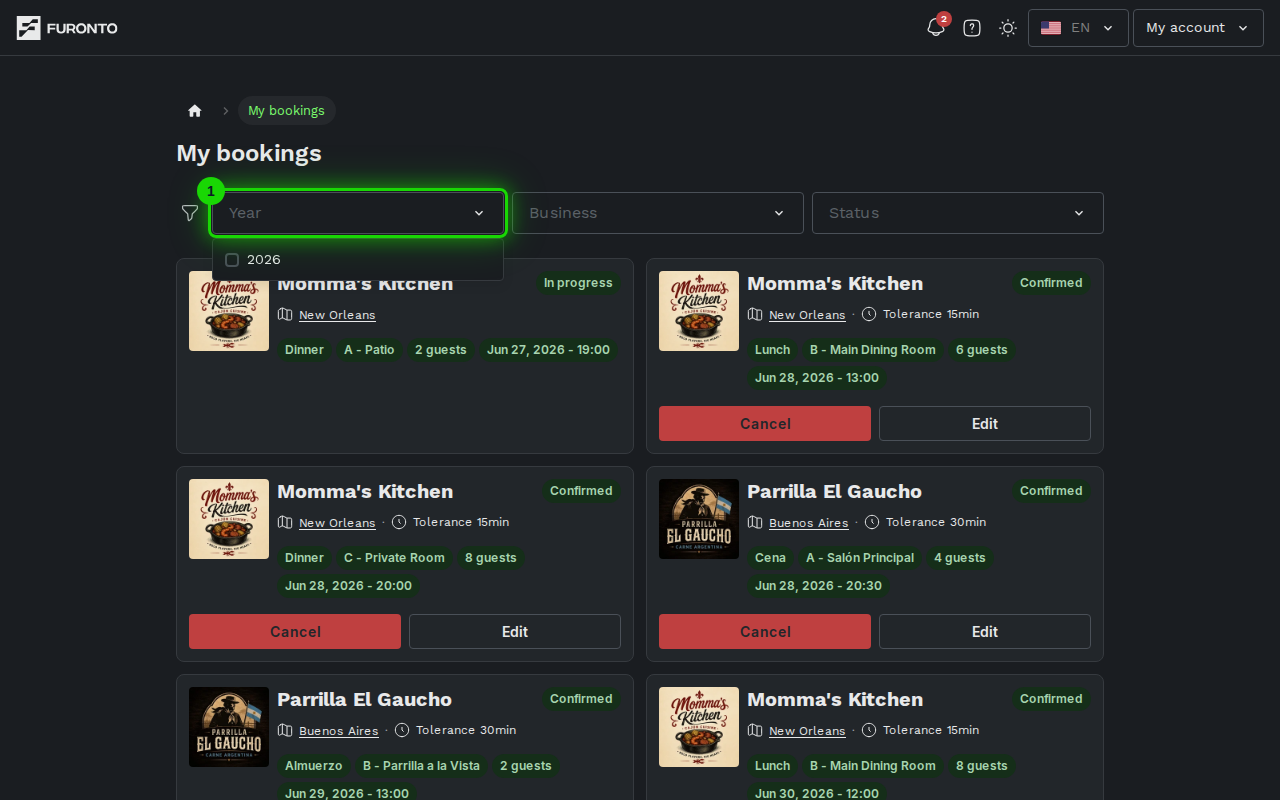
Filters combine — pick a year and a business to see all your visits to one venue in a given year. The list updates as soon as you choose something; there's no "apply" button to hunt for.
Step 2: Read the status at a glance
Every card carries a status pill: Pending, Confirmed, In progress, Completed, Cancelled, or No show. The pill colour matches the booking state, so you can scan the page and immediately see which visits still need confirmation and which are already settled.
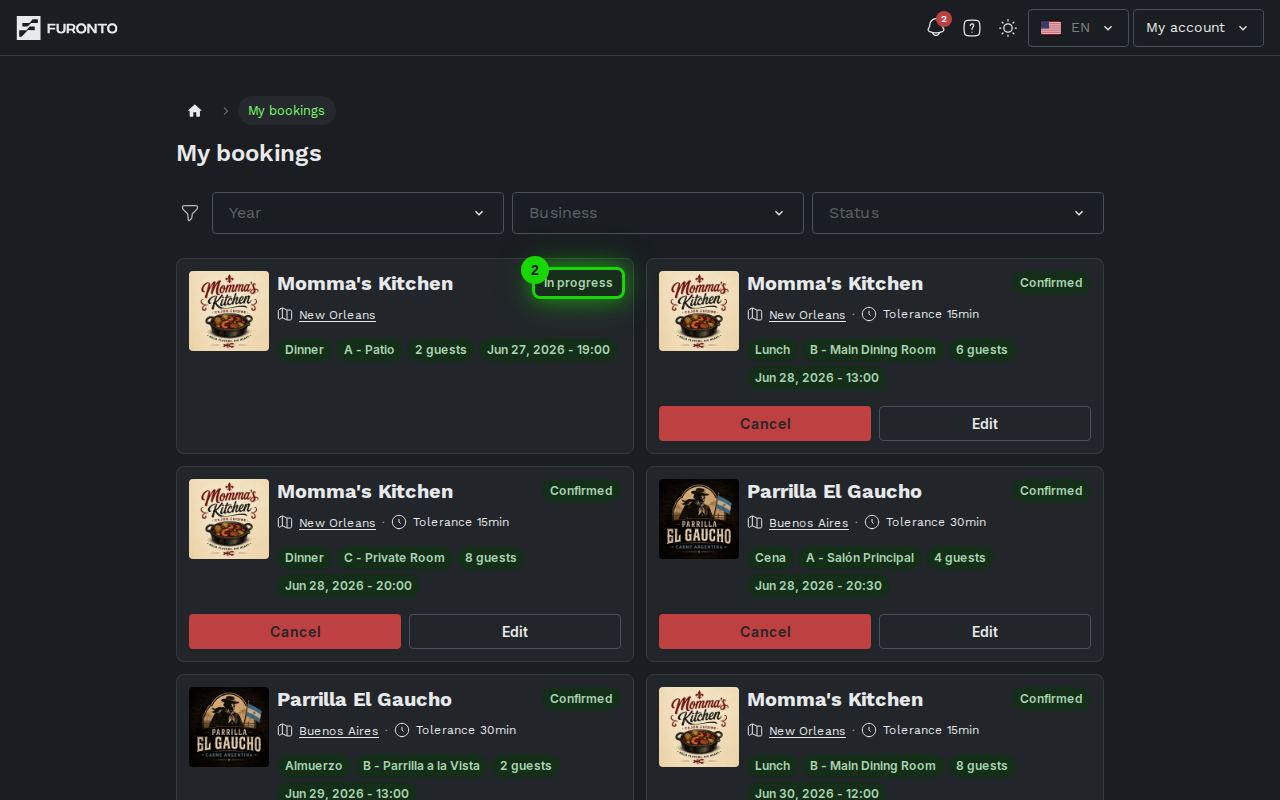
Step 3: Edit an upcoming booking
For bookings that are still Pending or Confirmed, you'll see an Edit button. Tap it to open a dialog where you can change the date, time, party size, or notes for the venue. The available time slots are recalculated in real time based on the venue's availability — if your current time is no longer free for the new date or party size, the first open slot is selected automatically. When the venue lets you choose a seating area, an area picker appears too, and the time slots narrow to the ones with space in the area you pick.
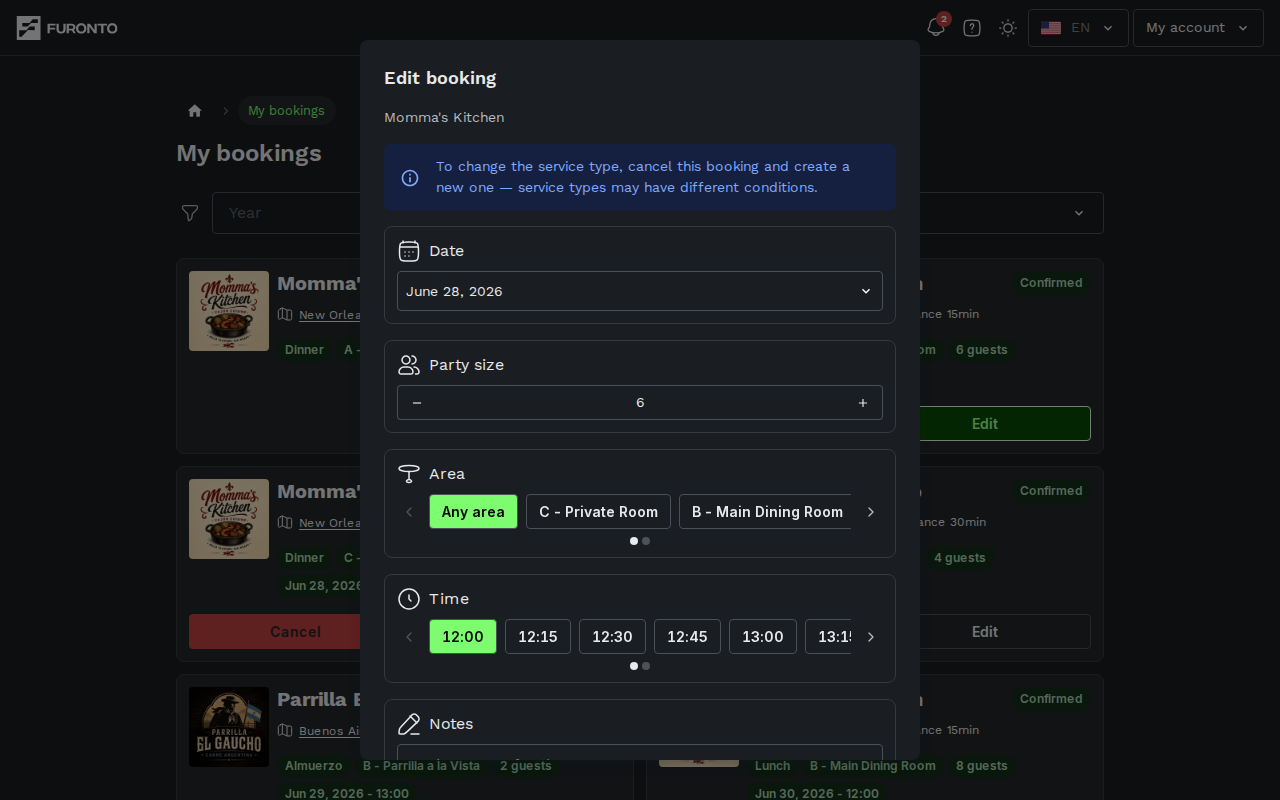
If a change would push your booking inside the venue's free-cancellation window, you'll see a heads-up notice in the dialog before you save. That way you know the new booking can no longer be cancelled for free.
Step 4: Cancel a booking
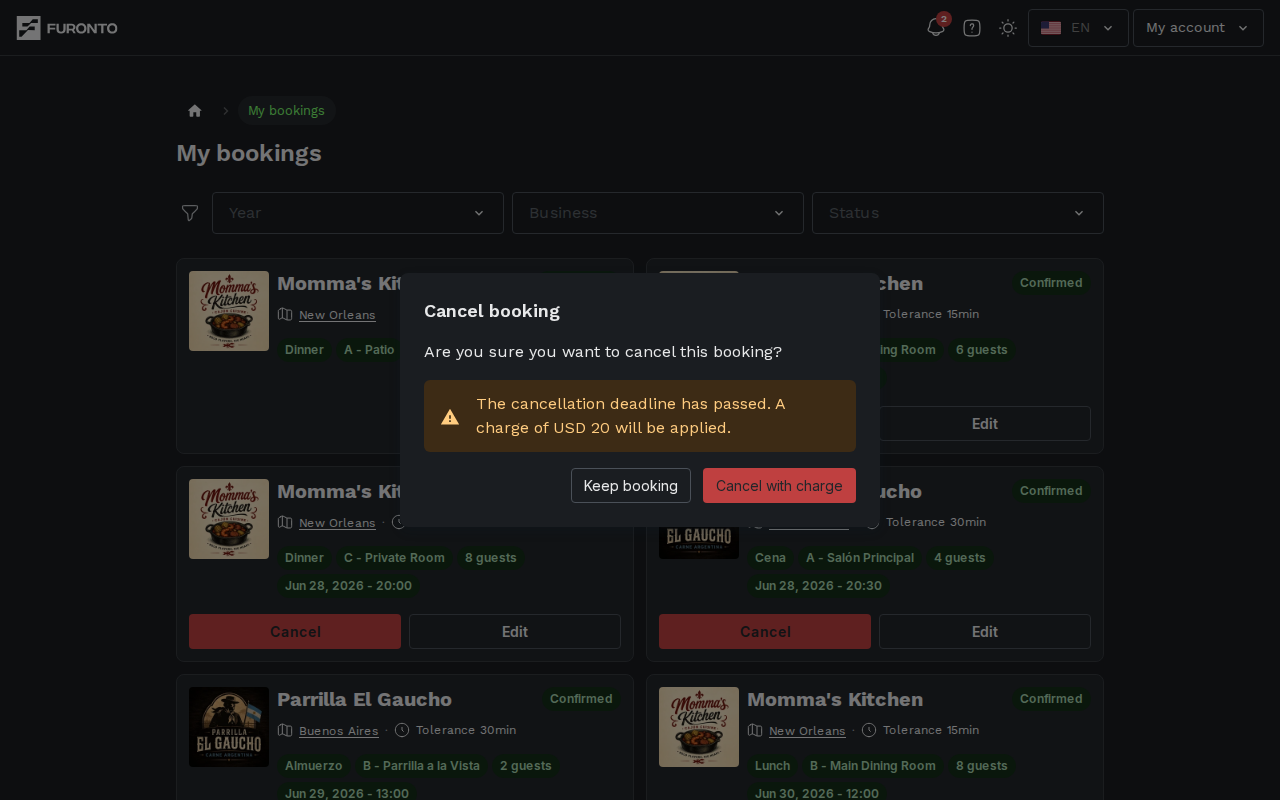
Right next to Edit, the Cancel button opens a confirmation dialog. If the venue requires a guarantee and you're still inside the free-cancellation window, the cancellation is free. If the deadline has passed, the dialog tells you the exact amount you'll be charged before you confirm.
Step 5: Book again from a past visit
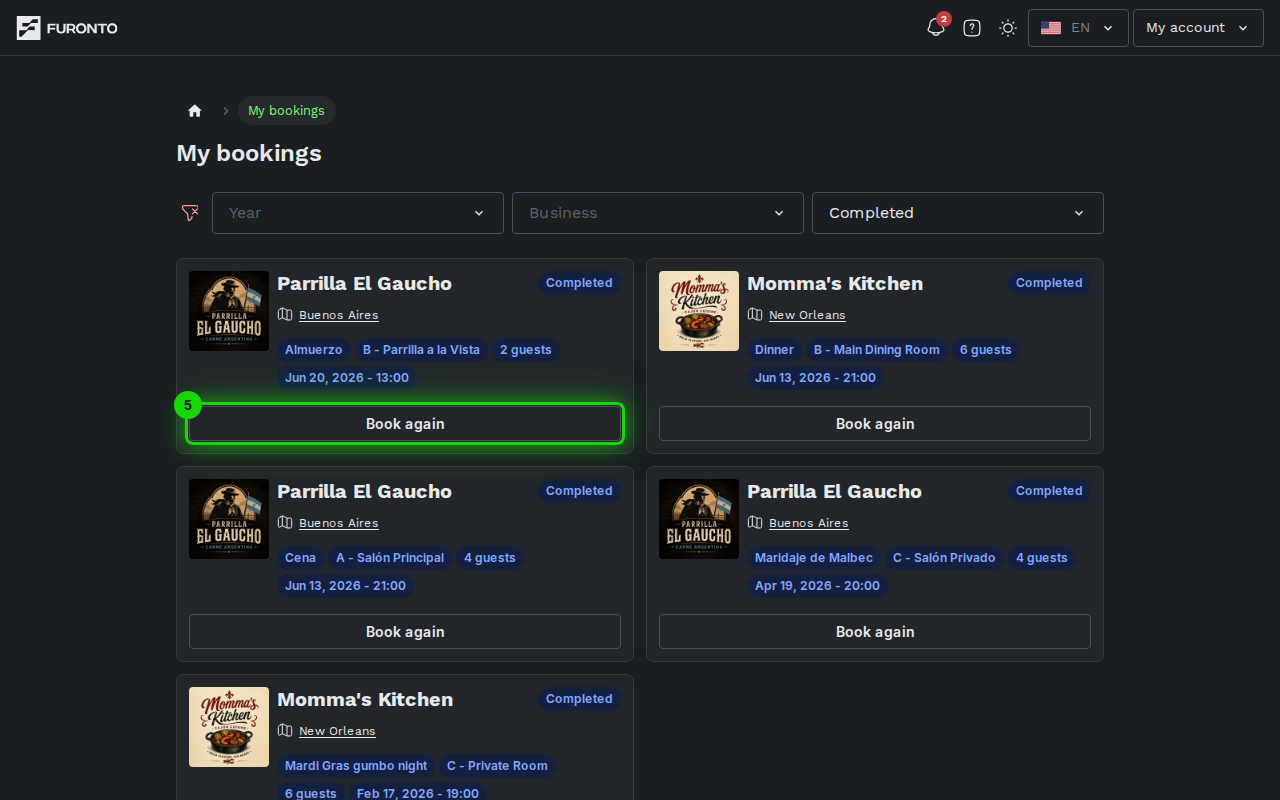
For visits that are over — completed, cancelled, no-shows, or simply in the past — the action button switches to Book again. One click takes you straight to the venue's profile so you can pick a new date and reserve.
Tips and best practices
- Check this page before each visit — A quick glance at your upcoming bookings makes sure you have the right time and venue in mind.
- Use the year filter to find old visits — Looking up a meal from last year for an expense report? Pick the year, then the business, and you'll see exactly the visits you need.
- Edit, don't cancel and rebook — If you only need to shift the time or change the party size, edit the existing booking. You'll keep your spot and any guarantee you've already placed.
- Cancel as early as you can — Most venues offer a free-cancellation window. The dialog always shows you the deadline so you know where you stand.
Troubleshooting
My booking isn't here
Solution: Make sure you're signed in with the same account you used to book. The list is tied to your user account, so a booking made under a different email won't show up.
The Edit and Cancel buttons aren't on my card
Solution: Those actions are only available for upcoming bookings that are Pending or Confirmed. Once a booking is In progress, Completed, Cancelled, or marked as No show, the venue has the final say and you'll see a Book again button instead.
I can't change the party size in the edit dialog
Solution: When the venue requires a per-person guarantee hold, the party size is locked. To change it, cancel the booking and create a new one — the system needs to recalculate the hold based on the new number of guests.
The cancel dialog says I'll be charged
Solution: The venue's free-cancellation window has passed. You can still cancel, but the guarantee amount shown will be charged. If your plans are uncertain, cancelling earlier next time keeps the cancellation free.
I see "No bookings match the selected filters"
Solution: One of your filters is too narrow. Tap the filter button on the left of the row (now showing a clear icon) to remove all filters at once, or open each dropdown and unselect what you don't need.
Related pages
- Find a business — Browse and search venues
- Make a booking — Reserve at a venue you've found