Integrations
This is where you connect your business to the analytics and marketing tools you already use. Hook up Google Analytics 4 or Meta Pixel and start receiving real data about how customers find you and book.
Business owners and managers who want to measure where their bookings come from, optimize ad campaigns, or feed their own analytics dashboards. You need owner or manager access to open this page.
Getting there
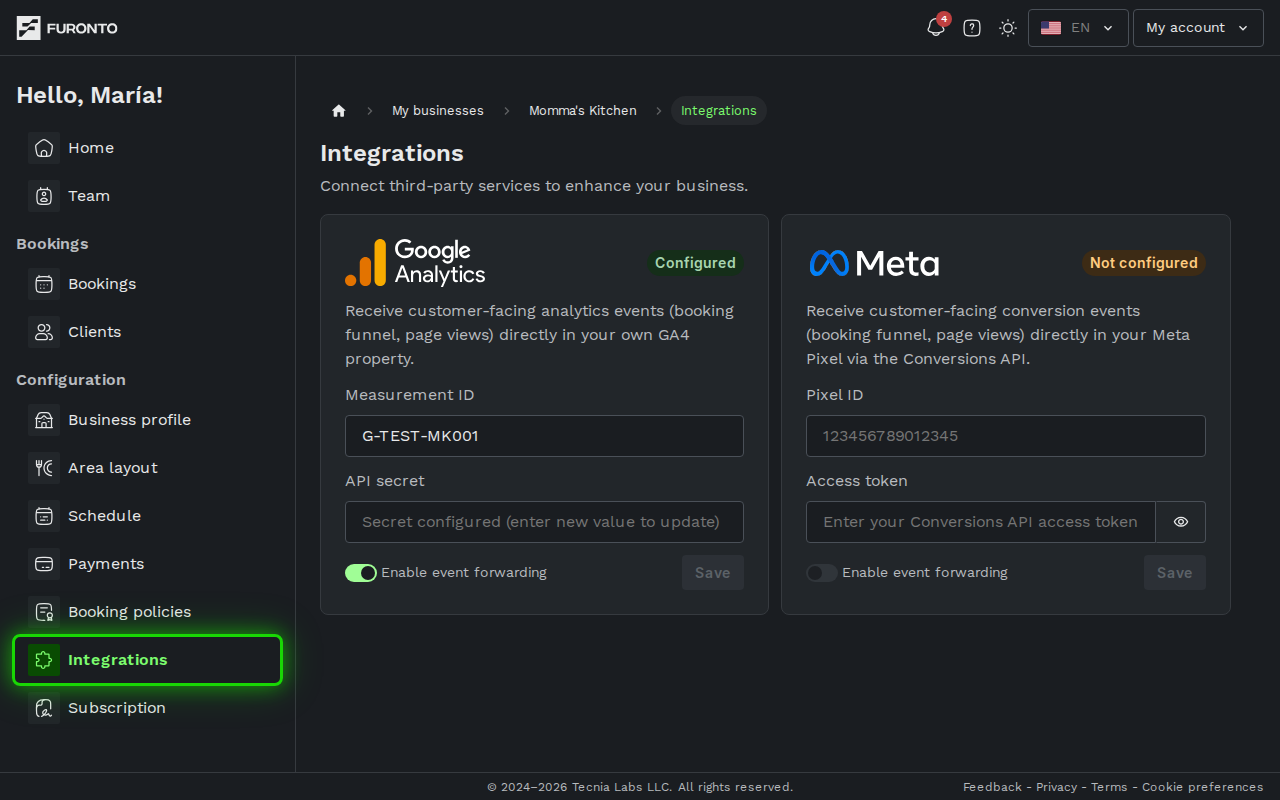
From your dashboard, click Integrations in the left sidebar, under Configuration.
You need to be signed in and have access to the business.
Prerequisites
Each integration is independent — you only need accounts for the ones you want to use.
For Google Analytics 4, you'll need a GA4 property with a valid Measurement ID (looks like G-XXXXXXXXXX) and a Measurement Protocol API secret. For Meta Pixel, you'll need a Meta Pixel ID and a Conversions API access token. The page links to detailed setup guides for both.
How it works
The page shows one card per available integration — Google Analytics 4 and Meta Pixel. Each card has the same shape: a status badge in the top right, a description, the credentials it needs, an enable switch, and a save button.
Step 1: Pick the integration you want to set up
When you open the page, you'll see both integrations side by side. The status badge tells you at a glance which ones are already configured.
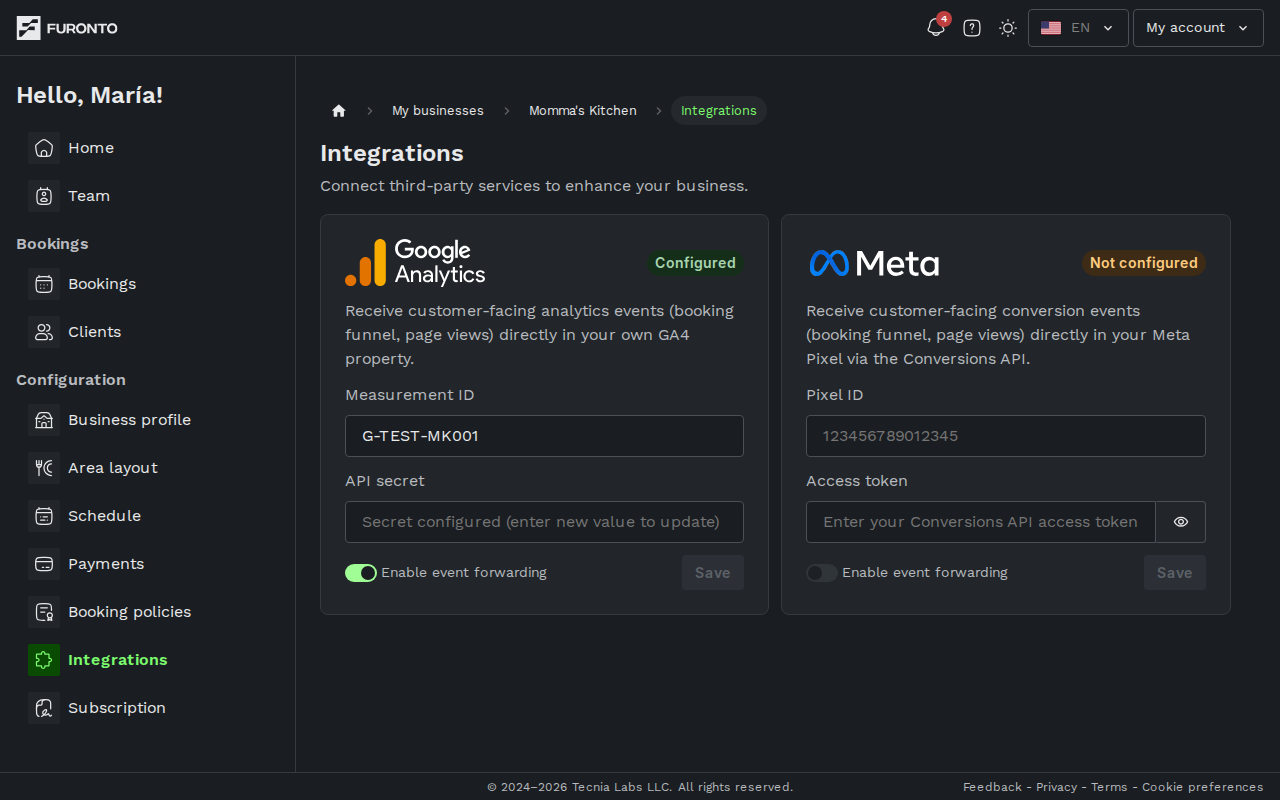
Status badges mean:
- Not configured (yellow) — the integration has no credentials yet
- Configured (green) — credentials are saved and events are flowing
- Invalid (red) — credentials are saved but something is wrong with them
You can configure as many integrations as you want at the same time. Each one runs independently, so adding Meta Pixel won't affect Google Analytics.
Step 2: Set up Google Analytics 4
Paste your GA4 Measurement ID in the first field. It always starts with G- followed by letters and numbers.
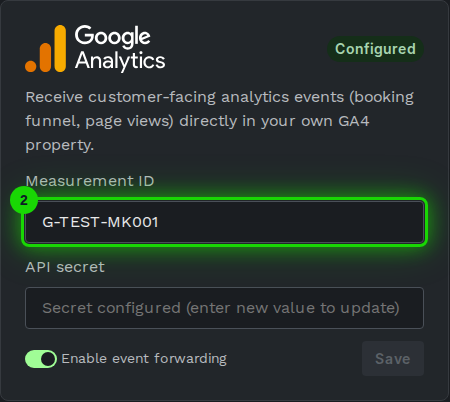
Then paste your Measurement Protocol API secret in the second field. The field is hidden — like a password field — so people looking over your shoulder can't read it.
Don't have a Measurement ID or API secret yet? See our GA4 setup guide for step-by-step instructions on creating both in your Google Analytics account.
Step 3: Set up Meta Pixel
For Meta Pixel, paste the numeric Pixel ID from your Meta Business account.
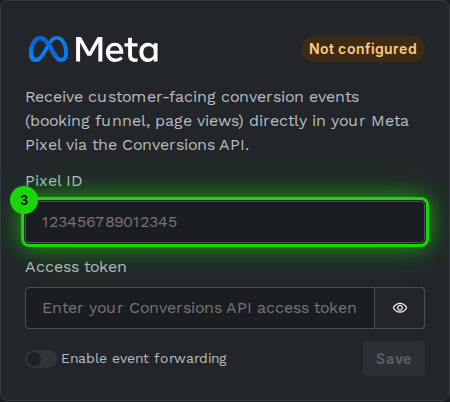
Then paste the access token you generated for the Conversions API.
The Pixel ID is just numbers — no letters or symbols. If your input is showing a format error, double-check that you didn't paste extra characters by accident.
Step 4: Turn on event forwarding
Each card has an Enable event forwarding switch. When this is on, every page view and booking step on your public booking page is sent to that integration in real time.
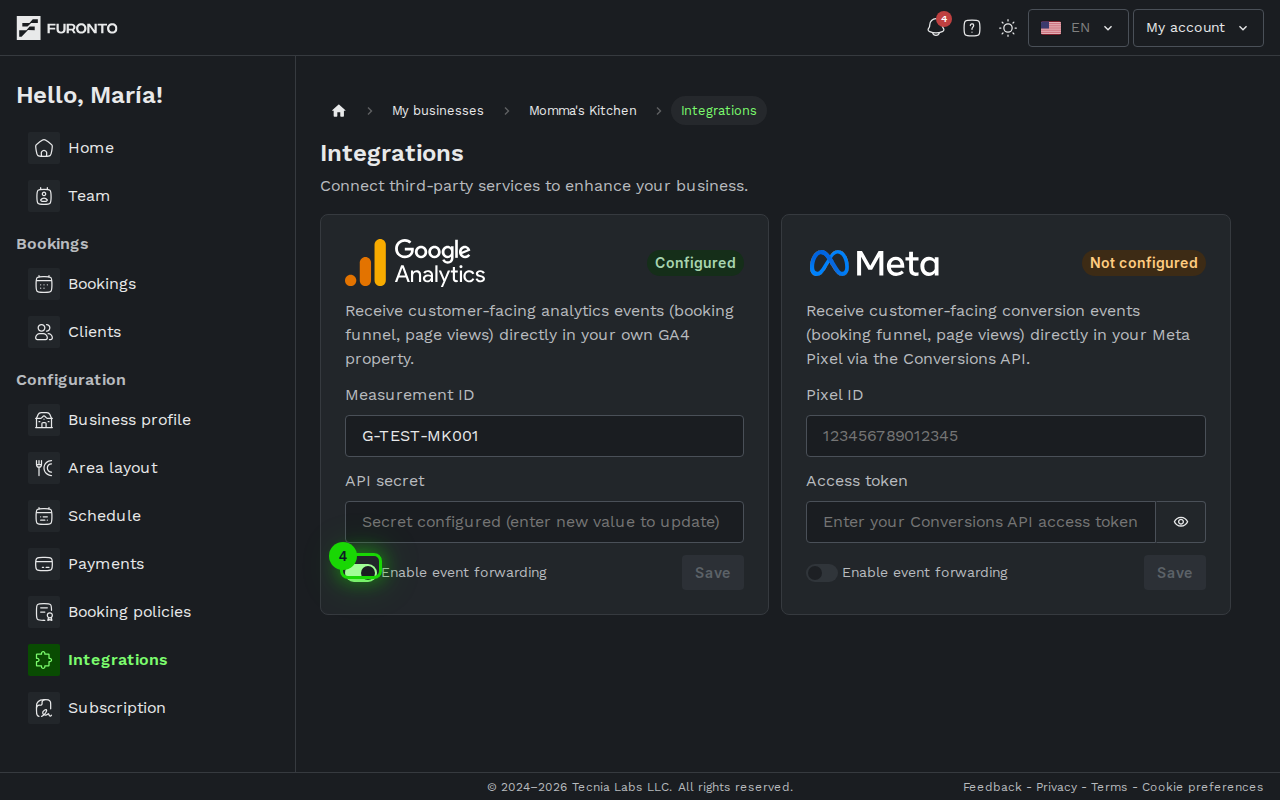
Turning the switch on without first saving valid credentials means no events will actually be sent. Always paste your credentials, click Save, and then enable the switch.
Step 5: Save your changes
Click the green Save button in the bottom right of the card. The button stays disabled until you've made a change, so you'll know right away when there's something to save.
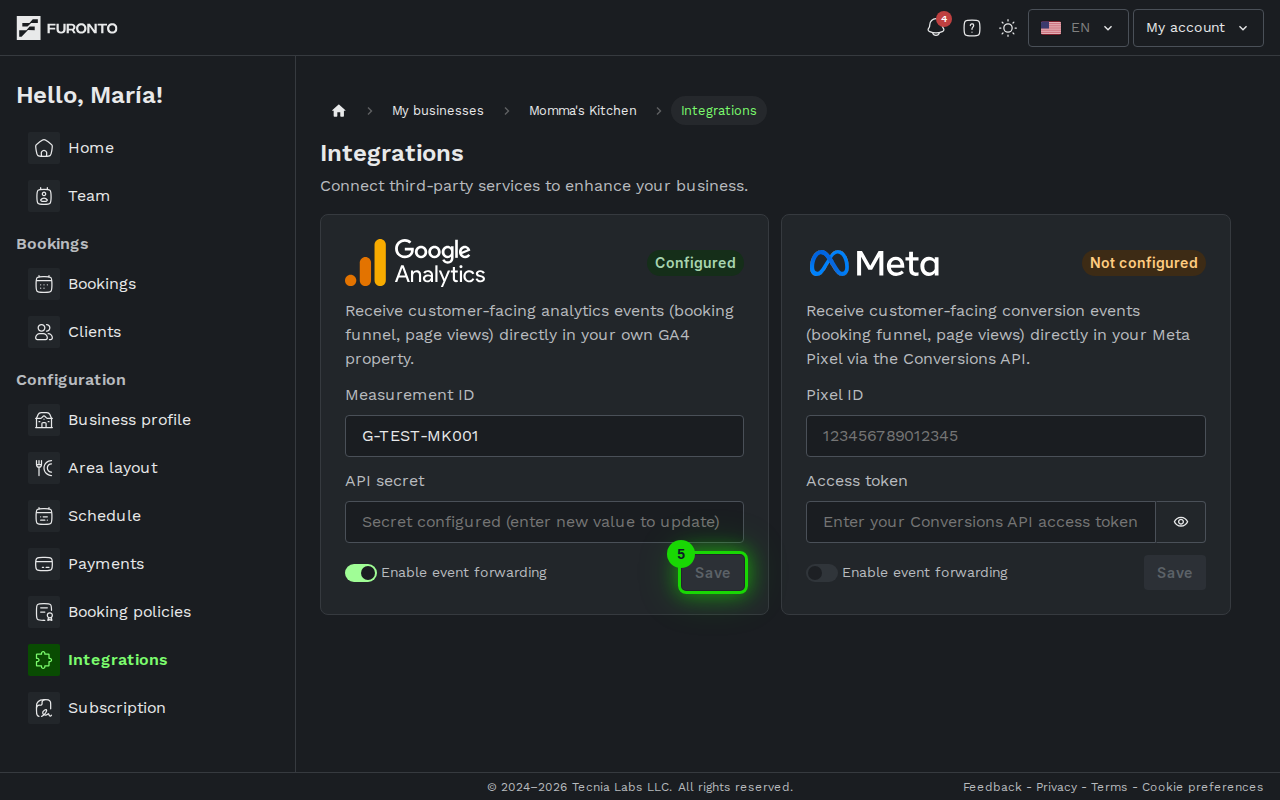
After you save, the status badge updates to Configured and your secret is stored securely. The next time you open the page you'll see a placeholder in the secret field — the actual value is never shown again, but it's still stored. To replace it, just paste a new value and save.
For your security, secrets and access tokens are never read back from the server. If you need to rotate them, paste the new value into the same field and save. The old one will be replaced.
Tips and best practices
- Test in your analytics tool after setup — Open your GA4 real-time report or Meta Events Manager and make a test booking on your site. Events should appear within a minute.
- Follow the setup guide — Our GA4 setup guide walks you through creating a Measurement ID and API secret. For Meta, generate your Pixel ID and Conversions API token in Meta Events Manager.
- Disable instead of deleting — If you need to pause event forwarding temporarily, turn off the enable switch instead of clearing your credentials. Switching it back on later is one click.
- Rotate tokens periodically — Both Google and Meta let you regenerate your secrets and tokens. When you do, paste the new value here and save to keep the integration working.
- Watch for the invalid status — A red Invalid badge means the platform rejected your last few events. Double-check your credentials and your public booking page for traffic.
Troubleshooting
My credentials show a format error
Solution: GA4 Measurement IDs must look exactly like G-XXXXXXXXXX (an uppercase G, a dash, then letters and numbers). Meta Pixel IDs must be only digits, no letters or dashes. Copy the value directly from your analytics platform without adding anything around it.
The save button is grayed out
Solution: The button only activates when you've changed something on the card. If you haven't edited any field, there's nothing to save. Edit a field — even toggling the switch counts — and the button will turn green.
I saved my credentials but no events are showing up
Solution: Check three things, in order: (1) the status badge shows Configured, not Invalid; (2) the Enable event forwarding switch is on; (3) someone is actually visiting your public booking pages. Events only fire from real customer traffic — not from inside the dashboard.
I see "Invalid" instead of "Configured"
Solution: Your credentials are saved but the integration platform is rejecting them. The most common causes are a typo in the Measurement ID or Pixel ID, an expired access token, or a deleted GA4 property. Re-check each value against your analytics platform — our GA4 setup guide shows where to find them in Google Analytics.
I want to remove an integration
Solution: Turn off the Enable event forwarding switch and click Save. This stops the integration without deleting your credentials, so you can re-enable it later. Full credential deletion isn't available from this page yet — contact support if you need that.
Related pages
- GA4 setup guide — Step by step: create a Measurement ID and Measurement Protocol API secret
- Business profile — The page customers visit, where these integrations track activity
- Bookings — See the bookings these integrations measure