Team
This is where you build your team inside the platform. Invite staff, give them the right level of access, and remove anyone who no longer works with you — all in one place.
Business owners and managers on a plan that includes team management. Owners have full control of the team. Managers can add members and remove staff, but only an owner can change someone's role or manage other managers. Staff don't see this page.
Getting there
From your dashboard, click Team near the top of the left sidebar, just below Home.
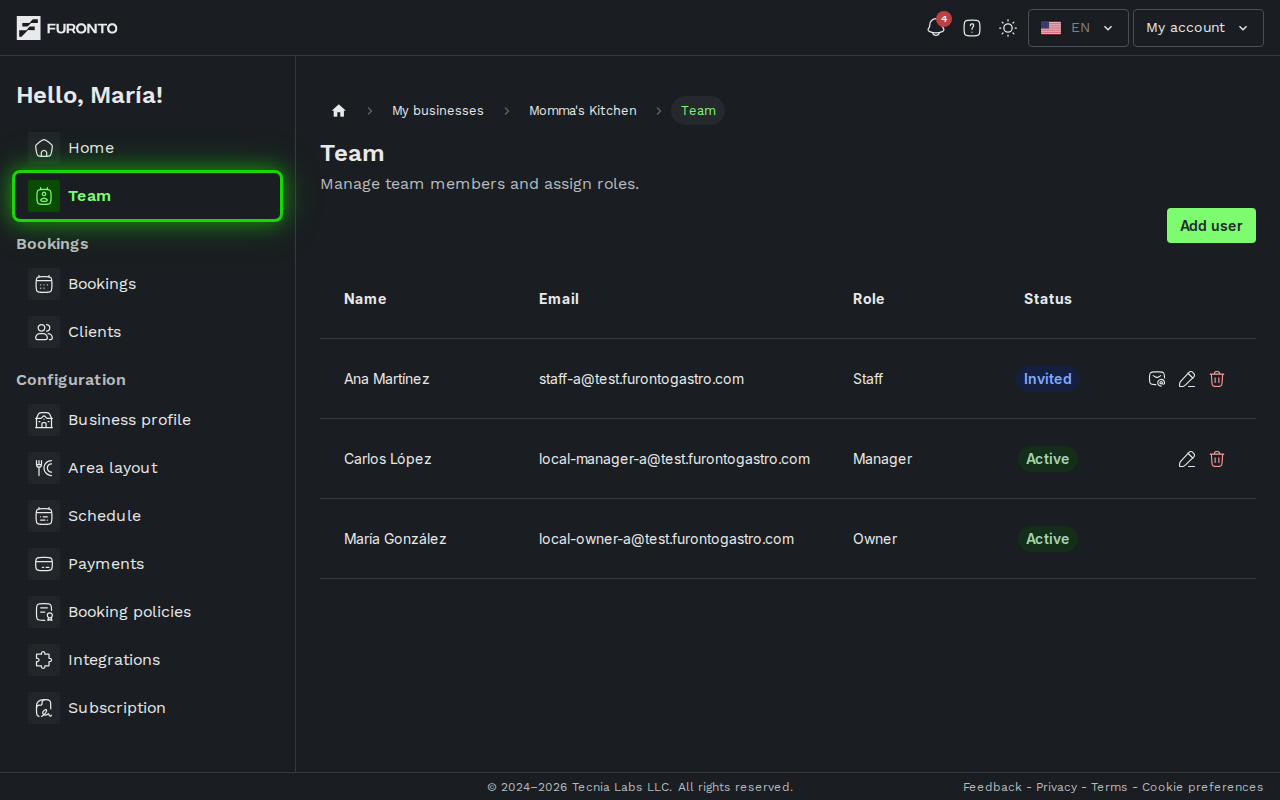
You need to be signed in as an owner or manager of the business.
Prerequisites
Team management is included on the Premium plan. If your plan doesn't include it, you'll see a message inviting you to upgrade instead of the team list.
To upgrade, contact support or update your subscription from the plan selector. Once the upgrade is active, refresh the page and you'll see the full team screen.
Understanding the roles
Before you start adding people, it helps to know what each role can do:
- Owner — Full control of the business. Can manage the team, billing, and every setting. There is always exactly one owner.
- Manager — Can run day-to-day operations: manage bookings, update the profile, configure the area layout, schedules, policies, and clients.
- Staff — Can handle bookings and serve customers, but can't change business-wide configuration.
Give new hires the Staff role first. You can always promote them to Manager later once you're confident they should have configuration access.
How it works
Step 1: Open the add user form
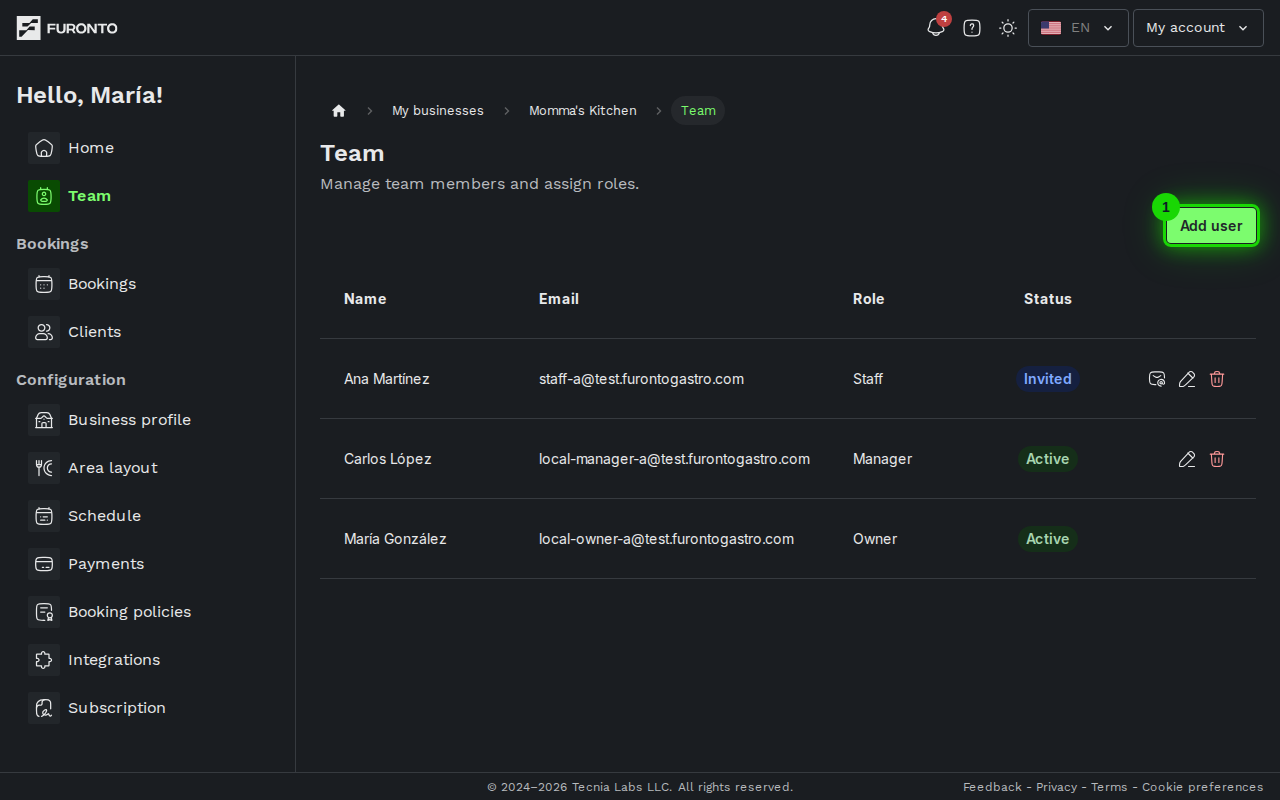
In the top-right corner of the page, click the green Add user button. A small window will open where you'll enter the person's details.
Step 2: Enter the user's email
Type the email address of the person you want to add. This must be the email they already use to sign in to the platform.
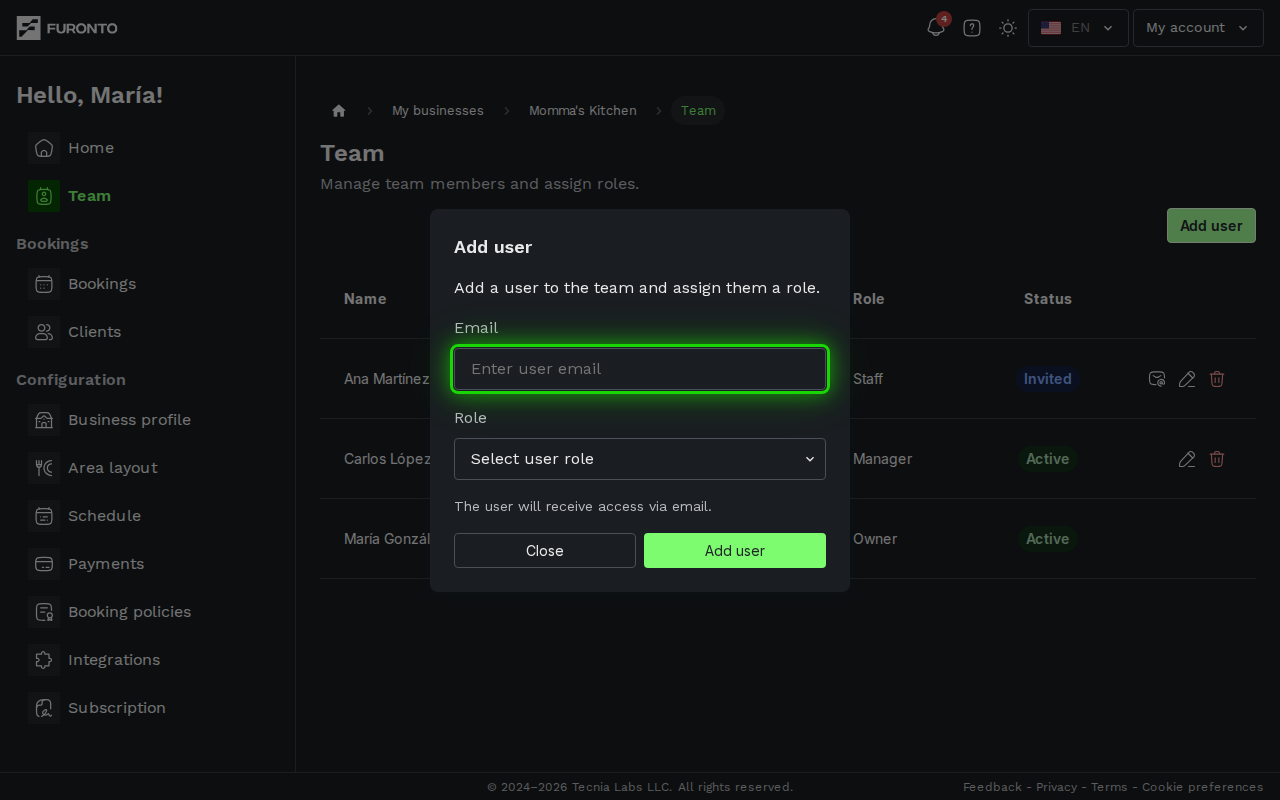
You can only add people who have signed up on the platform first. If they haven't created an account yet, ask them to register and then come back to add them.
Step 3: Choose the role
Open the Role dropdown and pick either Manager or Staff. You can change this later if needed. (If you're a manager rather than the owner, you can only add people as staff.)
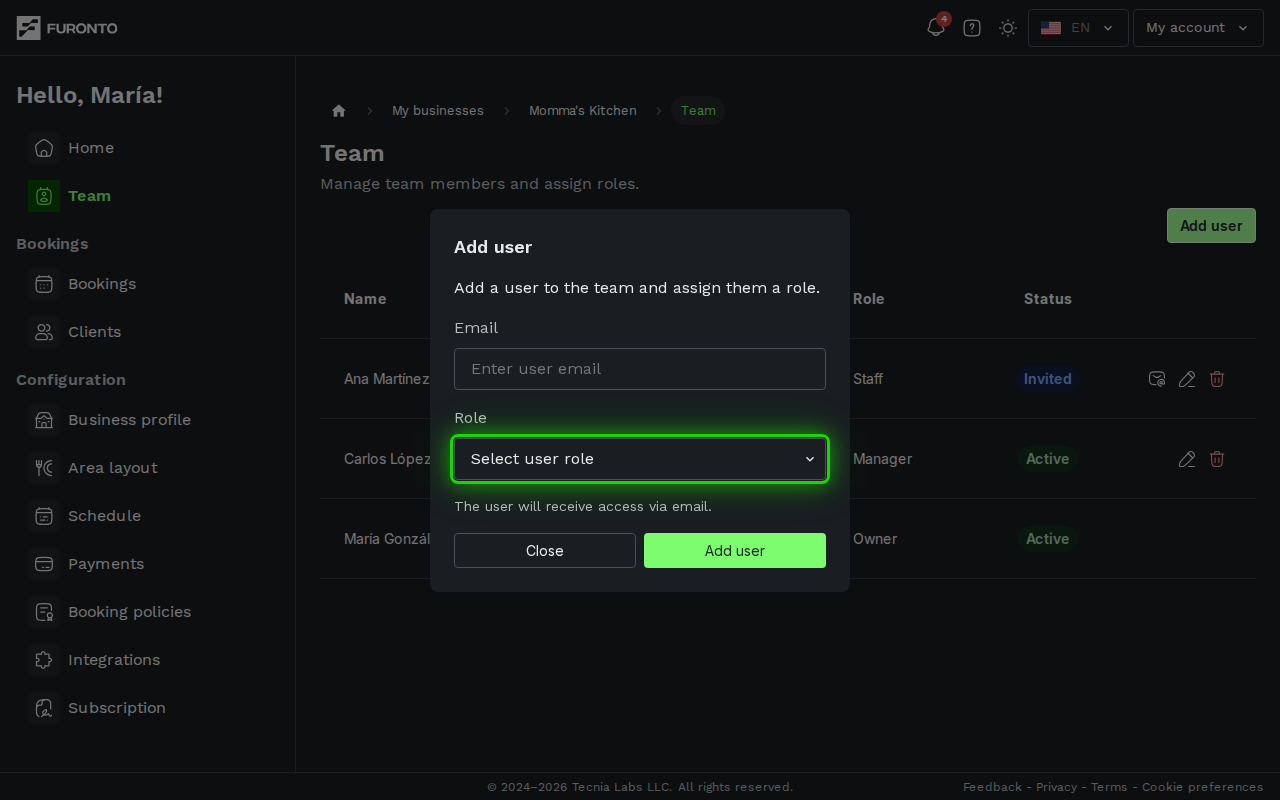
Click Add user to finish. You'll see a confirmation message, and the new member will appear in the list.
Step 4: Review your team
The main table shows everyone who has access to the business, along with their name, email, role, and status.
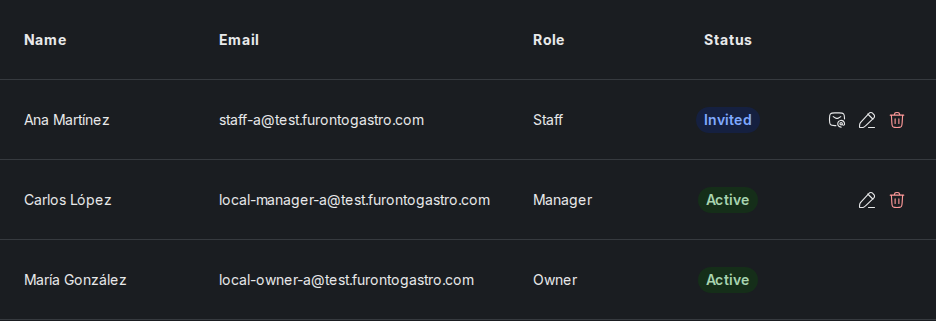
The Status badge tells you where each person stands:
- Active — They've accepted and can access the dashboard right now.
- Invited — They've been added but haven't accepted yet. Use the mail icon on their row to resend the invitation.
- Suspended — Their access has been paused.
Step 5: Change someone's role
Find the person in the table and click the pencil icon at the right end of their row. A window will open where you can pick a new role and save it.
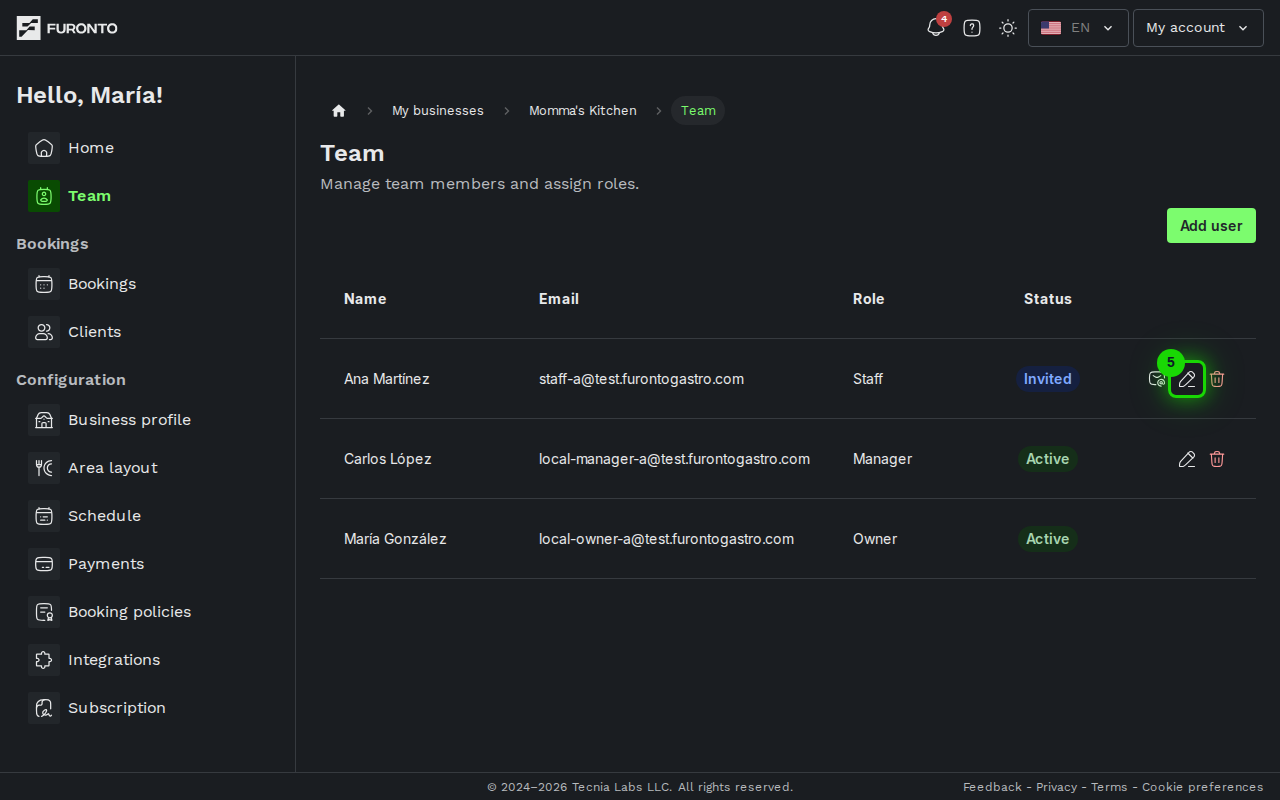
Role changes take effect immediately. The person will see the new permissions as soon as they refresh the dashboard.
Step 6: Remove a team member
To remove someone, click the trash icon at the end of their row. You'll be asked to confirm.
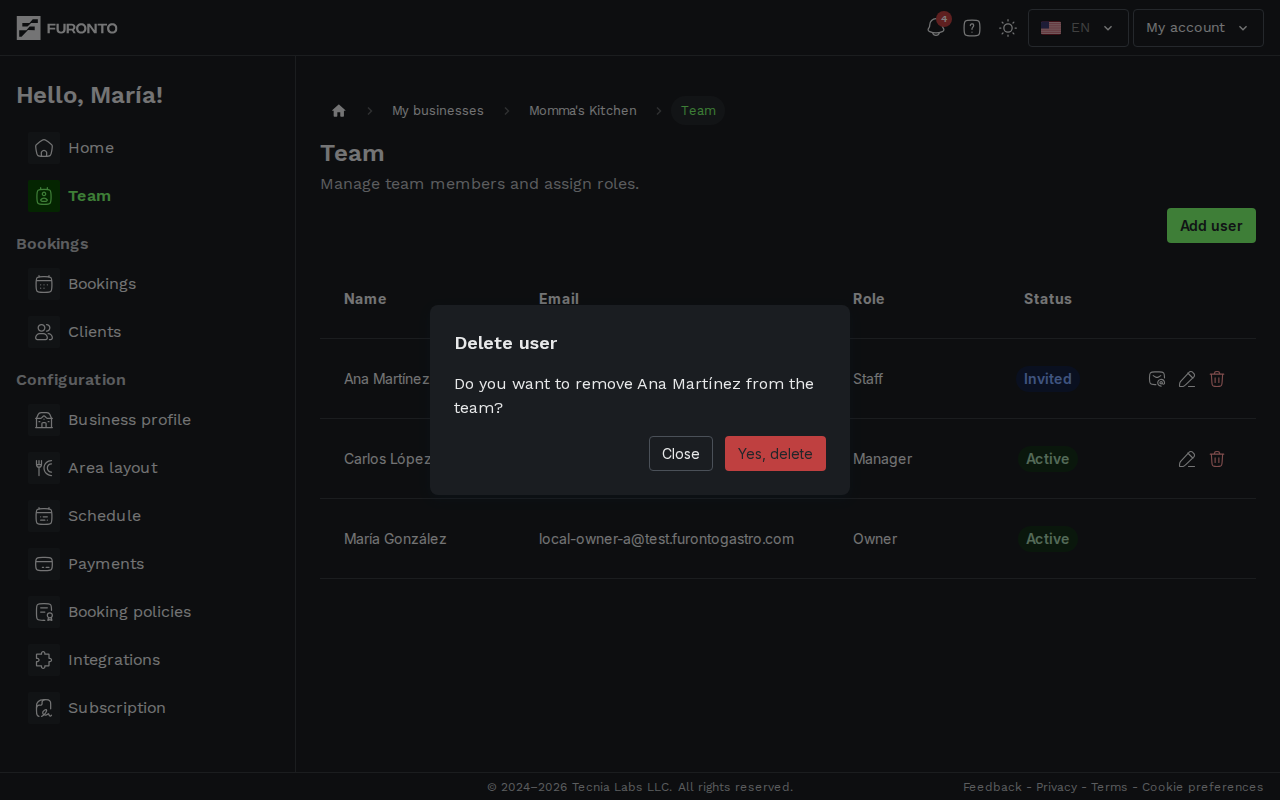
The person loses access to the business the moment you confirm. Their past actions (bookings they created, notes they added) stay intact, but they won't be able to open the dashboard anymore. You can always add them back later if needed.
Tips and best practices
- Use real names in your team's profiles — The table shows whatever name each person set in their profile. A complete name makes it much easier to know who's who.
- Start with Staff, promote to Manager — It's easier to give more access than to take it back after something goes wrong.
- Review the team every few months — Remove people who no longer work with you so their access doesn't linger.
- Keep at least one active manager — If you go on vacation, a manager can keep things running without needing the owner's password.
Troubleshooting
I see "No account found with that email"
The email you entered doesn't match any registered user on the platform.
Solution: Double-check the spelling, and ask the person to create an account first. Once they've signed up with that email, come back and try again.
The person I invited doesn't see the business in their dashboard
Solution: Ask them to sign out and sign back in. Their access is refreshed when they start a new session.
I don't see the Edit or Delete buttons on a row
Solution: Those buttons are hidden for the Owner row on purpose — the owner can't be removed or demoted. If you need to transfer ownership, contact support.
The page shows "Team management not included"
Solution: Team management is only included on the Premium plan. Upgrade your subscription from the plan selector, then refresh the page.
Related pages
- Business profile — Set the name, photos, and details your whole team will be working with
- Schedule — Define service types and availability that your team can manage
- Bookings — Day-to-day booking management your team will use every day