Your profile
This is your personal profile across the platform. The details you save here travel with you wherever you book — restaurants, salons, clinics, or any other business.
Anyone with an account. This is your personal profile — it stays with you no matter which businesses you book with. It's different from a business profile, which is only for people who run a business on the platform.
Getting there
Click My account in the top-right corner of any page, then choose My profile from the menu that opens.
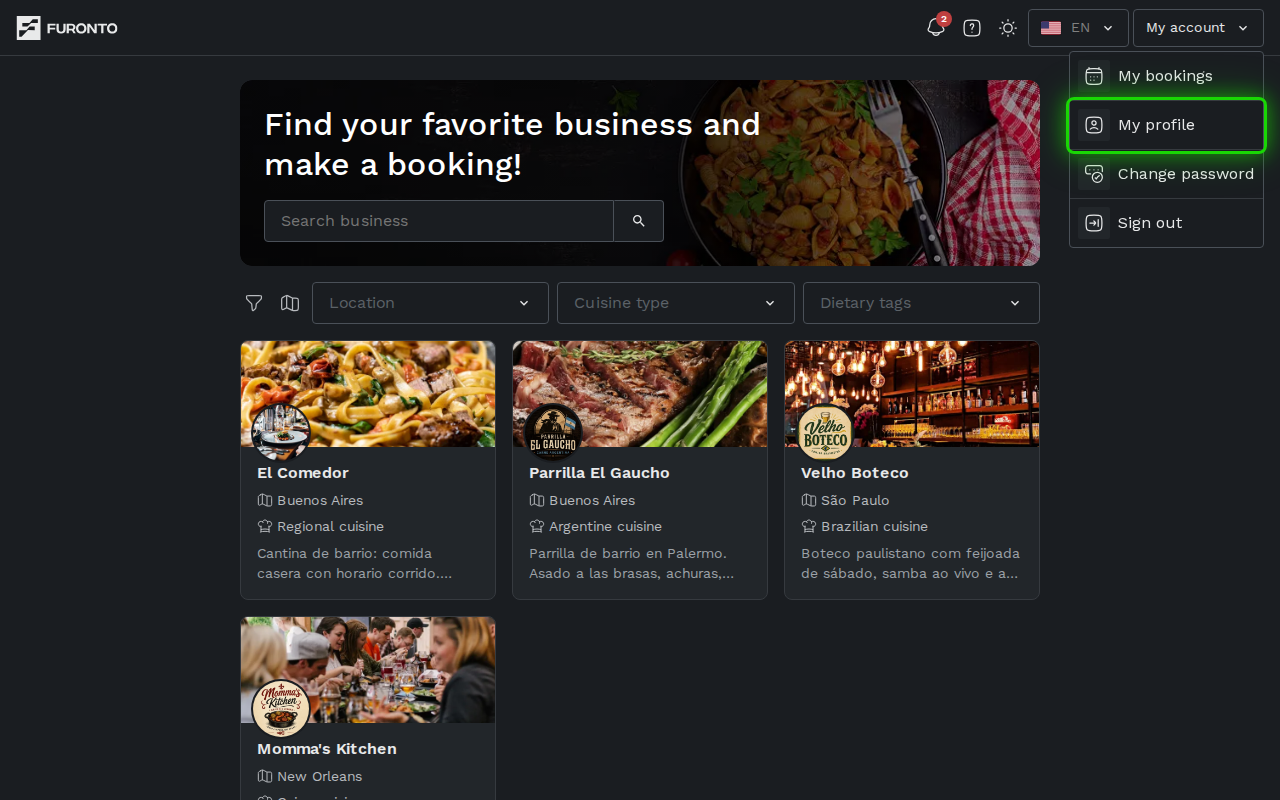
You need to be signed in to view this page.
How it works
Step 1: Review your details
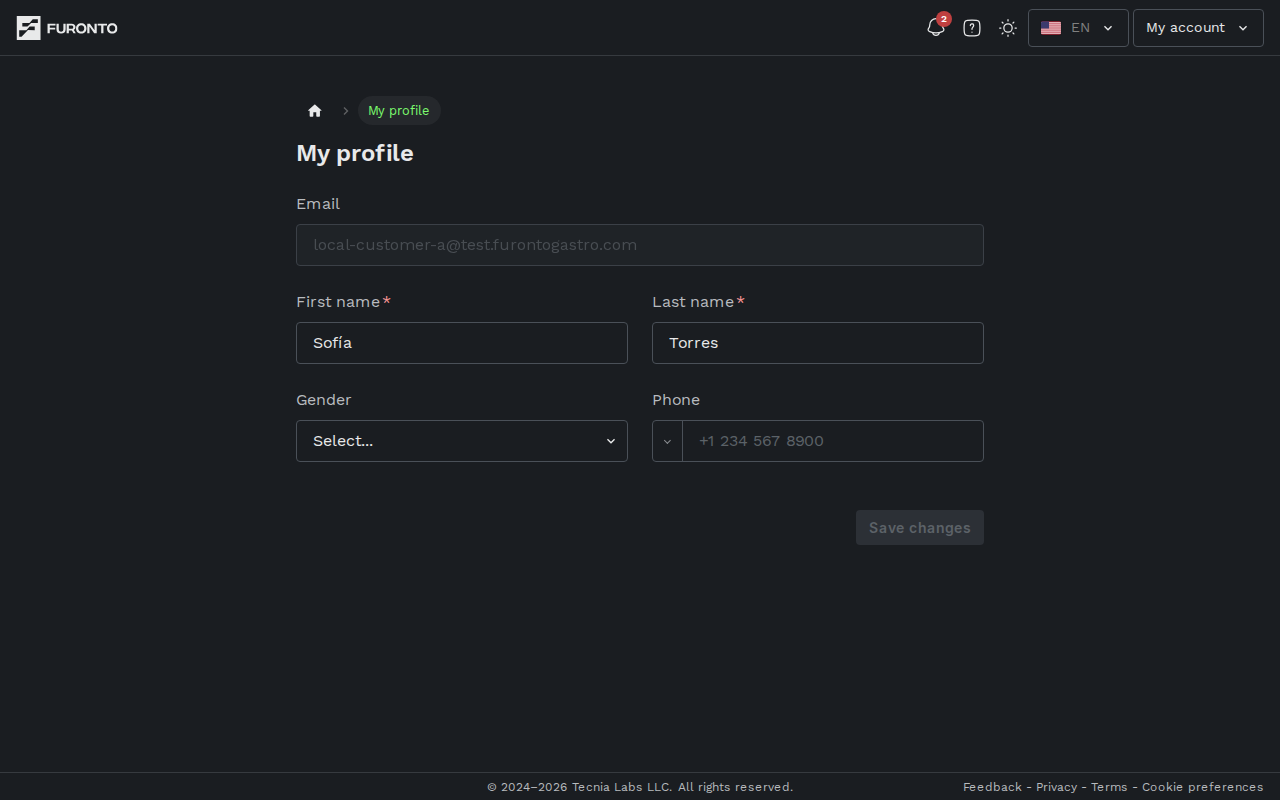
When the page loads, your current information appears across a few fields: email, first name, last name, gender, and phone number. Take a quick look to make sure everything is up to date.
Step 2: Edit your name
Update your first name and last name directly in their fields. Both are required, so you can't leave them empty.
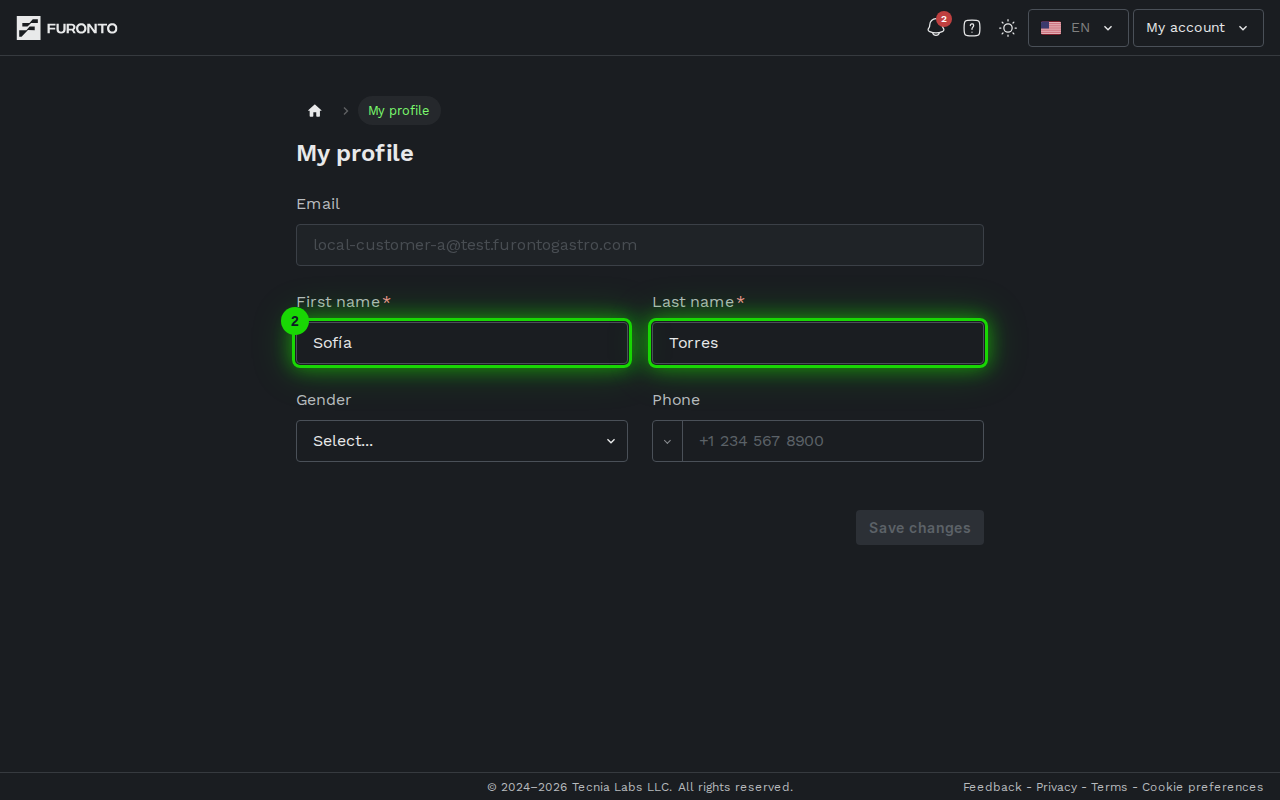
Use the name you'd want a business to greet you with when you arrive. It appears on your bookings.
Step 3: Pick your gender (optional)
The Gender dropdown is optional. Choose the option you identify with, or leave it blank if you'd rather not say.
Step 4: Change your phone number
Click the flag icon on the left of the phone field to open the country selector, pick your country, then type your number. The country code is added automatically.
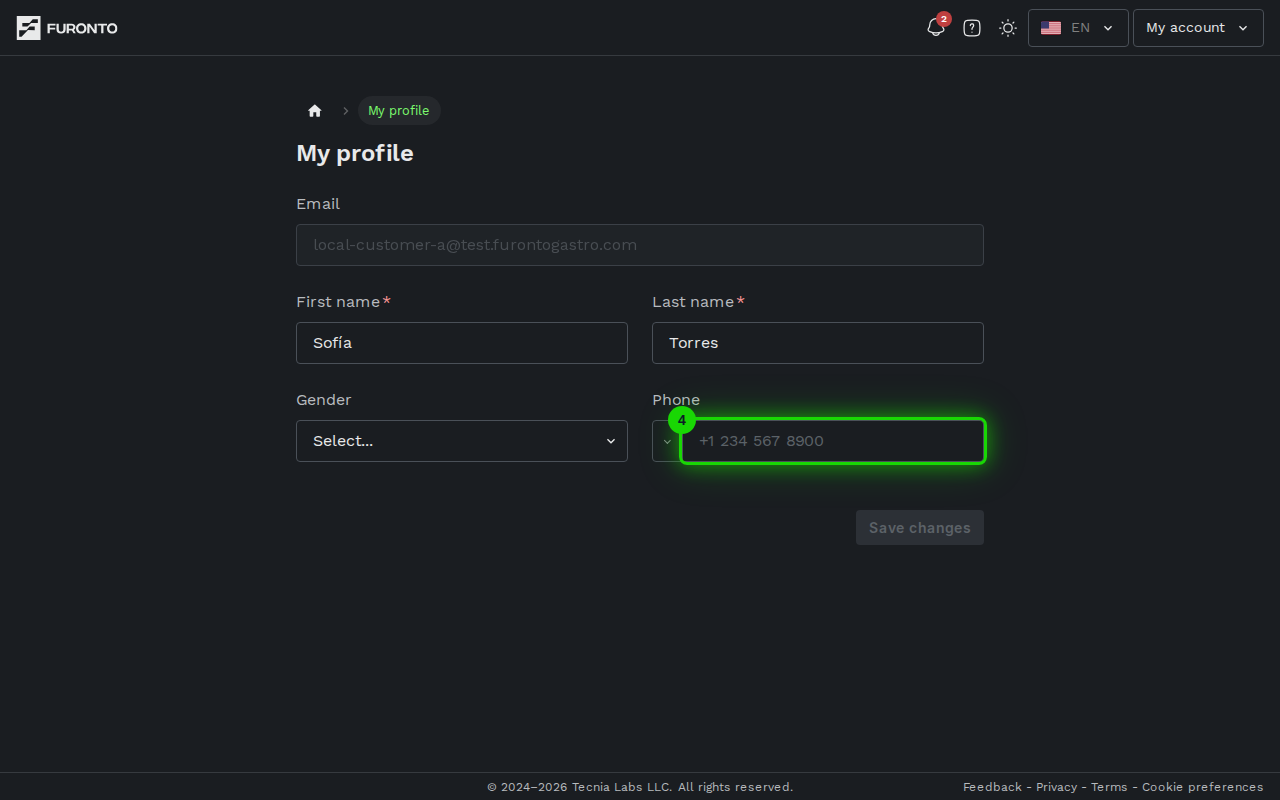
Businesses use your phone number to reach you about your booking — confirmations, updates, or last-minute changes. Keep it current.
Step 5: Save your changes
When you've made an edit, the Save changes button at the bottom-right becomes active. Click it to store your changes.
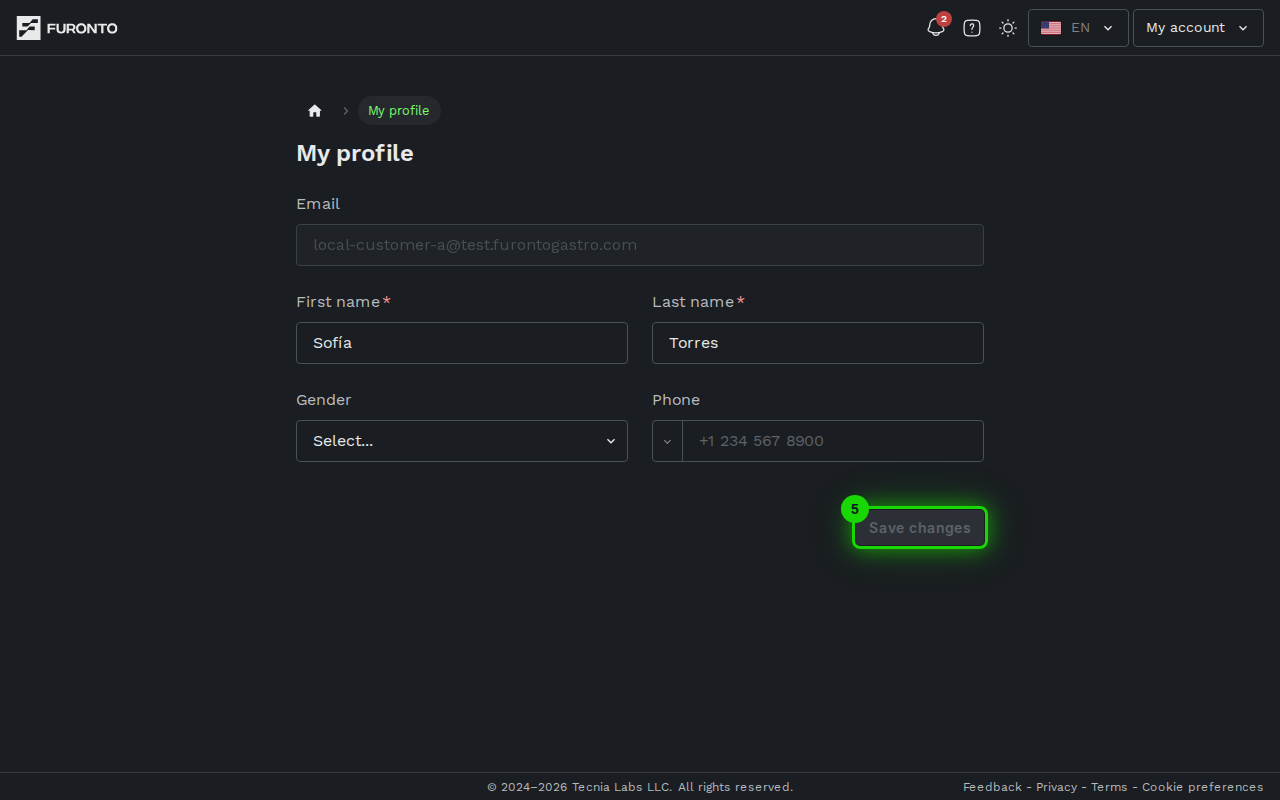
You'll see a confirmation toast when everything is saved.
If you try to leave the page with unsaved edits, you'll be asked to confirm. Anything you haven't saved would be lost.
Tips and best practices
- Keep your phone number current. Businesses contact you here for booking confirmations and changes.
- Use your real name. Many businesses look you up by name when you arrive.
- Save often. Edits aren't applied until you click Save changes — small changes, save right away.
Troubleshooting
"My phone number isn't accepted"
Solution: Make sure you've picked the right country from the flag icon on the left of the phone field — the country code drives validation. Then type the local number without leading zeros (the format hint in the field shows an example for your country).
"I want to change my email"
Solution: The Email field is locked because your email is how you sign in. To change it, you'd need to create a new account with the new email address. We don't currently support changing the email on an existing account.
"The save button is grayed out"
Solution: Save changes only activates when there's something new to save. Try editing a field — the button will turn on as soon as the form sees a change.
"I'm getting an unsaved-changes warning"
Solution: You changed a field but haven't saved yet. Click Save changes to keep your edits, or undo your changes and the warning will go away.
"Profile not found for your account"
Solution: This shows up if your account hasn't fully synced yet. Sign out, sign back in, and your profile should load. If it persists, contact support.
Related pages
- Sign in — Get back into your account
- My bookings — See every booking you've made across businesses
- Business profile — Different from this page; for managing business info if you run one