Choose your URL
This is the last step of setup. The slug you pick here becomes the public address customers will use to visit your business — for example, furontogastro.com/en/your-business. It also appears in every booking link you share, so it pays to pick something short, clear, and easy to type.
Business owners finishing setup. Only the owner of the business can complete this step.
The slug is shown in the address bar and in every link you share. The platform treats it as permanent, so pick something you'll be happy with for the long run.
Getting there
After you save your business basic info, the setup flow takes you straight to this page. You can also reach it from the URL /dashboard/your-business/setup/business-slug.
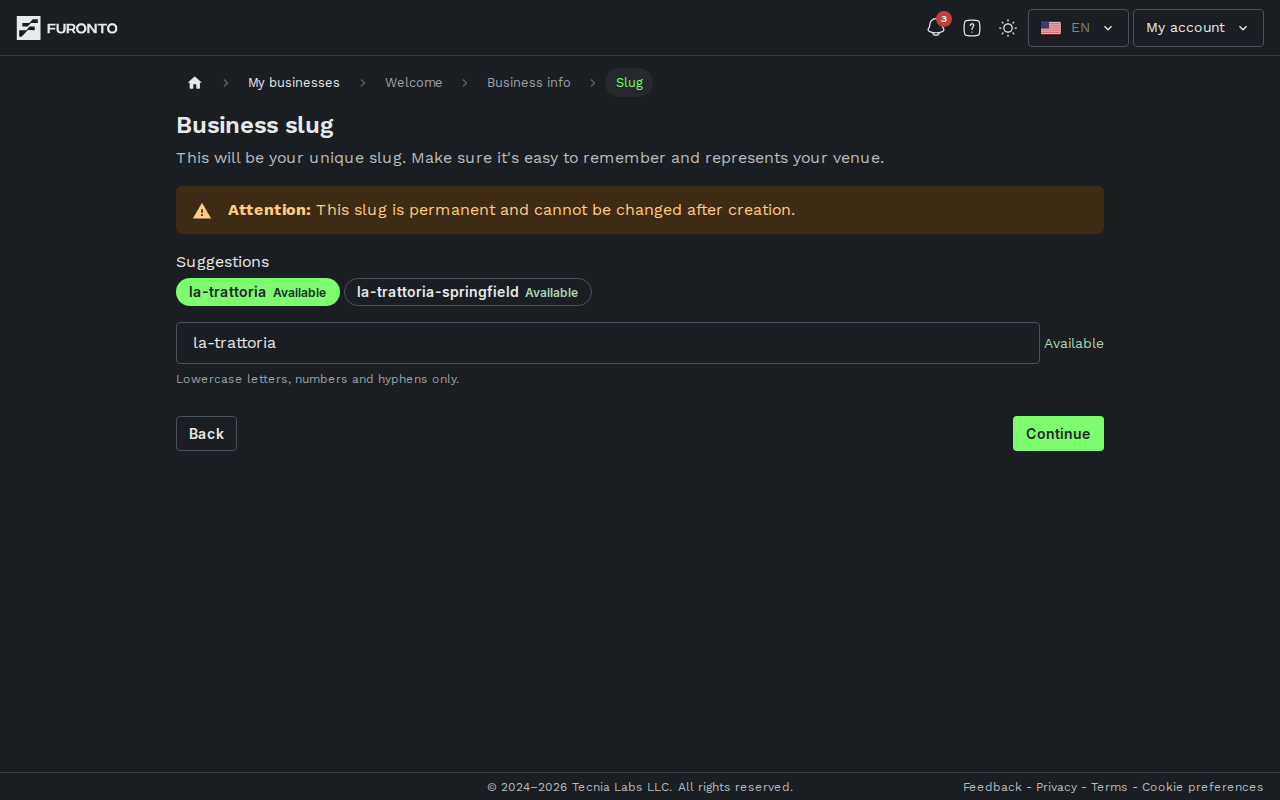
How it works
Step 1: Pick from the suggestions or type your own
When the page loads, you'll see a row of Suggestions generated from your business name and address. Each suggestion shows a small label next to it:
- Available (green) — the slug is free, and you can click it to use it.
- Taken (red) — another business already uses it; the button is disabled.
- A small spinner — we're still checking that one.
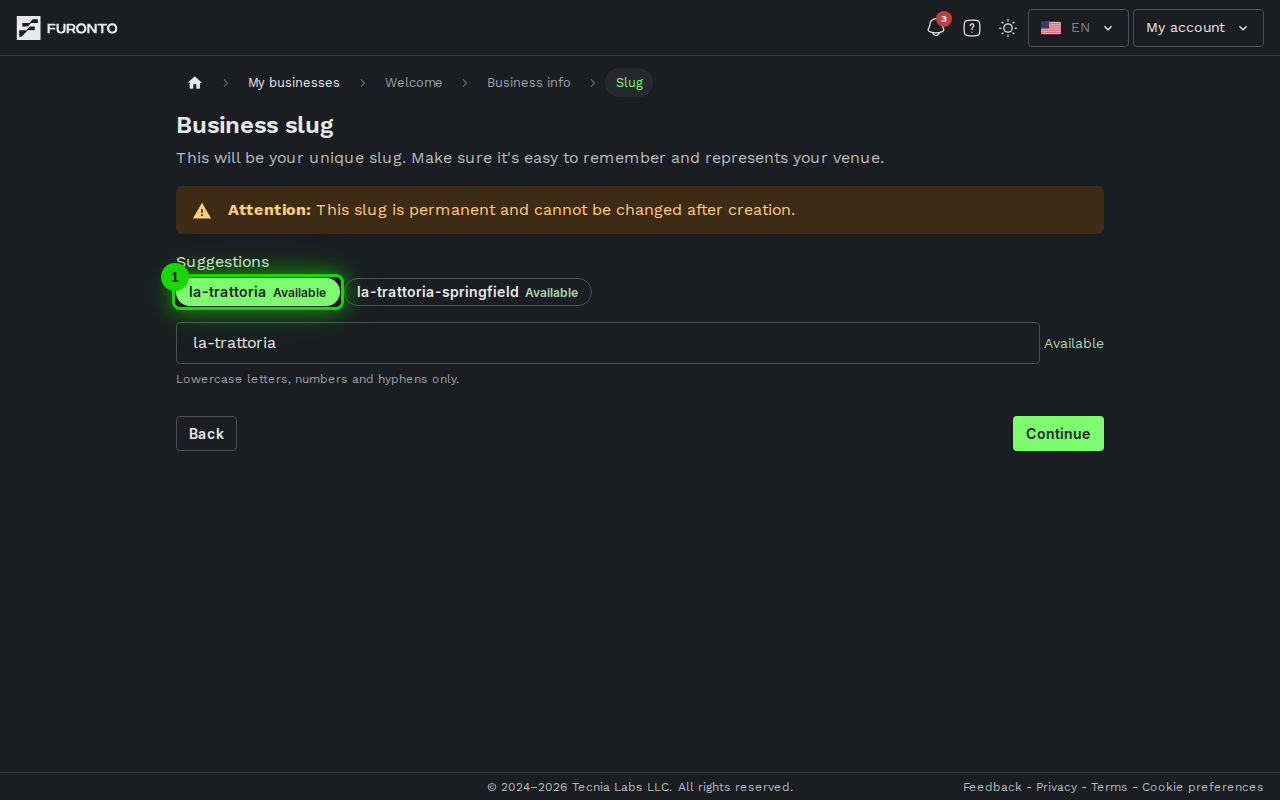
As soon as the checks finish, we prefill the input with the first available suggestion (the one based purely on your business name), so you can just hit Continue if you're happy with it. Click any other green suggestion to swap, or type into the Business slug input below for something different.
Suggestions are a good starting point, but you don't have to use them. A short, memorable slug ("la-trattoria") usually beats a long descriptive one ("la-trattoria-italian-restaurant-downtown").
Step 2: Watch the availability check
As you type, we sanitize what you enter (more on the rules below) and check whether the slug is available. While the check is running, you'll see a small spinner next to the input. As soon as we have an answer, the spinner is replaced by:
- Available in green — you're good to continue.
- Taken in red — try a different slug.
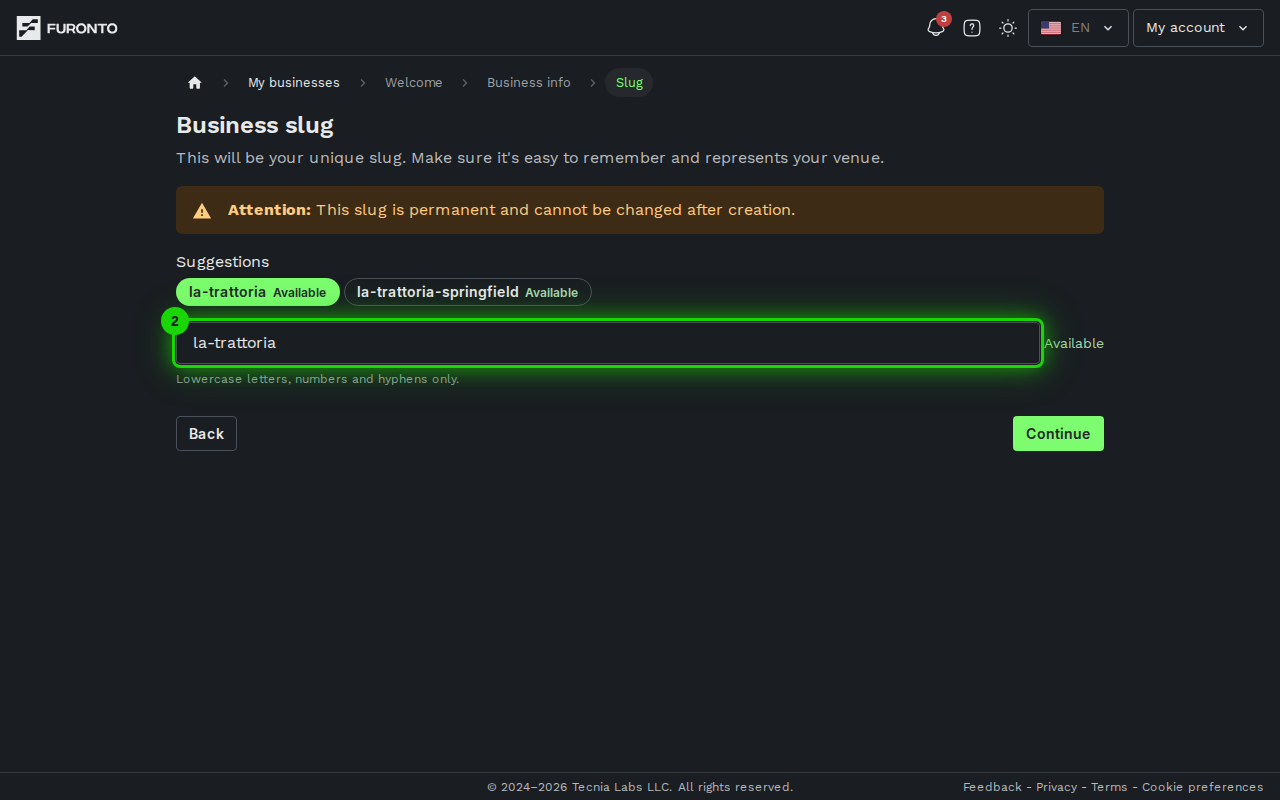
The check runs about half a second after you stop typing, so you don't need to wait between keystrokes.
Step 3: Confirm and finish setup
When the slug shows Available, the green Continue button at the bottom right activates. Click it to finish setup.
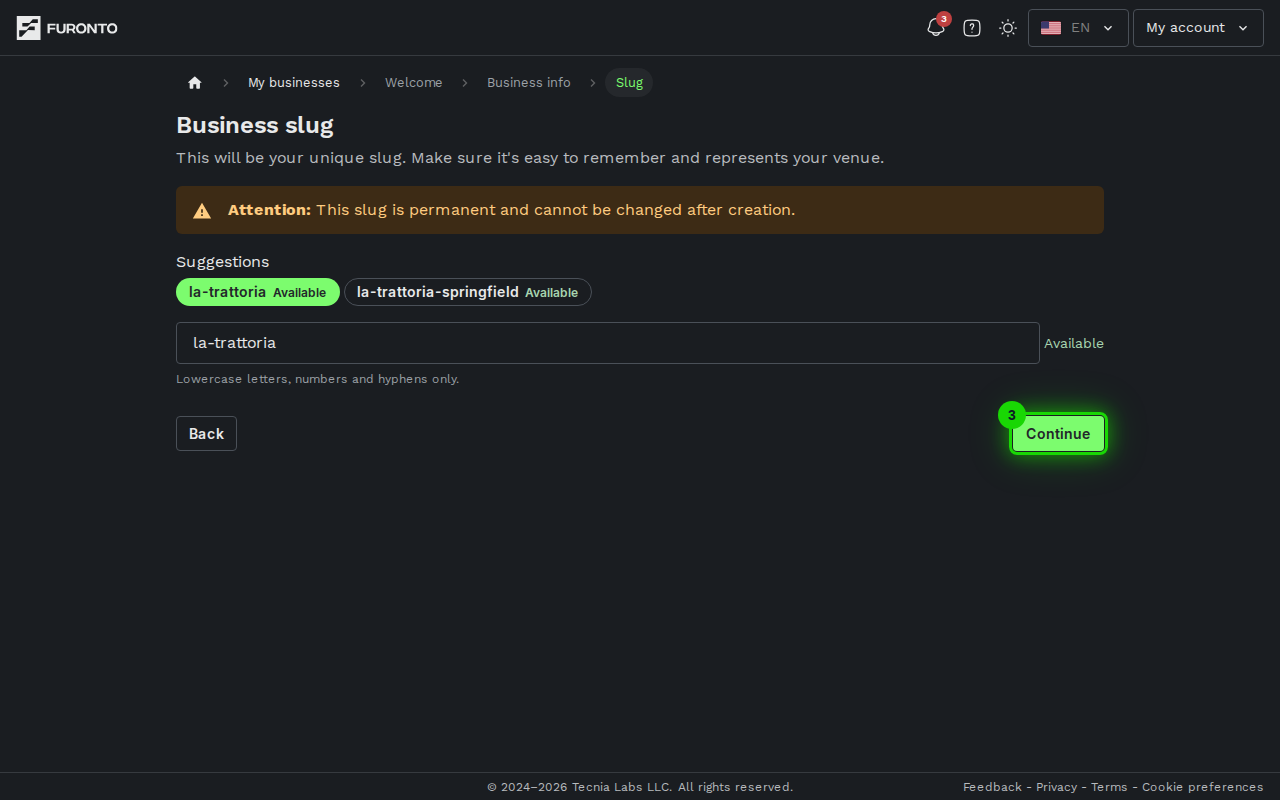
You'll see a "Creating your business..." toast while we save everything. When it's done, you land on your dashboard home at /dashboard/your-new-slug/home — and your business is live at its new URL.
If you want to revisit the previous step, click Back at the bottom left.
Slug rules
The input only accepts characters that are valid in a URL path. Specifically:
- Lowercase letters (
athroughz) - Numbers (
0through9) - Hyphens (
-) — but not at the start or end, and never two in a row - Up to 63 characters total
We strip spaces and uppercase letters as you type, so don't worry about those.
Reserved words
A handful of slugs are reserved by the platform because they're already used elsewhere in the URL. You can't use any of these:
dashboard, my-bookings, login, profile, loading, demo, admin, api, app, www, help, support, settings, furonto, onboarding, setup.
Slugs that look like an auto-generated setup placeholder (for example, setup-1a2b3c4d) are also reserved.
If you try to use one of these, the input will show Taken and the Continue button stays disabled.
Tips and best practices
- Keep it short. Customers will type or share this URL — shorter is easier to remember and looks better in messages.
- Match your business name. If your business is called "La Trattoria",
la-trattoriais the obvious choice. Customers expect the URL to mirror the brand they know. - Avoid numbers and hyphens when you can.
latrattoriareads better thanla-trattoria-2024. - Add a location only if needed. If
pizza-romanais taken, trypizza-romana-palermorather than abandoning the name entirely. - Don't include "restaurant", "cafe", or your industry. Customers already know what kind of place you run by the time they visit your URL.
Troubleshooting
My slug shows as "Taken" but I'm sure no one else uses it
Solution: The check looks for any business that has already claimed that slug, including ones that aren't published yet. Try a small variation — add your neighborhood, drop "the", or use an abbreviation. If you believe this is a mistake, contact support.
I get an error about reserved words
Solution: Some words are reserved by the platform (like dashboard, login, profile). Pick something specific to your business instead. Adding your business name, neighborhood, or city usually does the trick.
The "Continue" button stays grayed out
Solution: Continue activates only when the slug is non-empty, valid, and confirmed available. Wait for the spinner to finish — if the result is Taken, try another slug. If you typed an invalid character, we already stripped it; check that what's in the input is at least one character long.
The page redirects me away from setup
Solution: Setup pages are only available for businesses that haven't finished onboarding yet. If your business is already published, the platform redirects you to your dashboard instead. To change details after that, use the Business profile page.
Related pages
- Business basic info — The previous setup step
- Dashboard home — Where you land after finishing setup
- Business profile — Edit your business details after setup