Customers
This is where you get to know the people behind your bookings. Every time someone reserves at your business, they show up here with their contact details and a complete booking history — so you always have context before a call, a follow-up, or a visit.
Everyone on your team. Owners, managers, and staff can all browse the customer list and open a profile to see someone's booking history.
Getting there
From your dashboard, click Customers in the left sidebar, under Bookings.
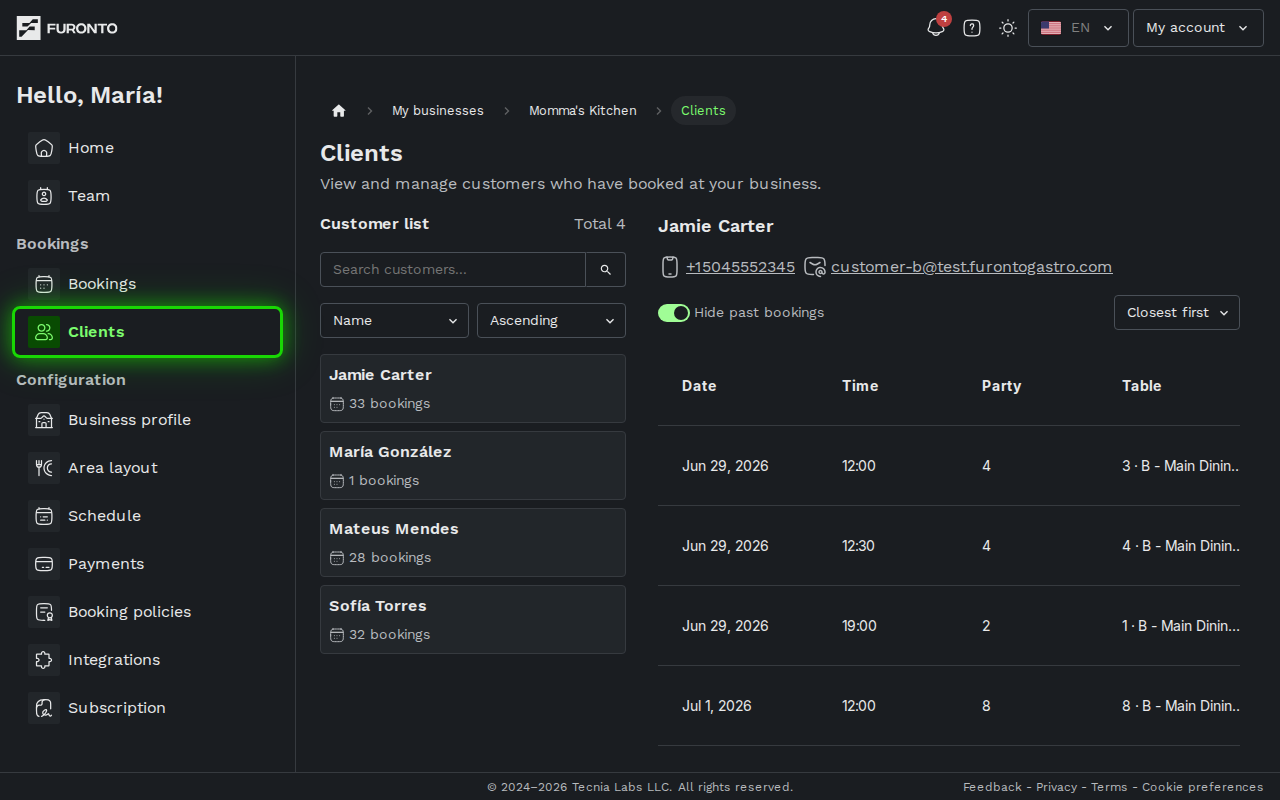
You need to be signed in and have access to the business.
How it works
The page is split into two panels. On the left you'll see every customer who has ever booked with you. When you click on someone, their full profile opens on the right — contact info at the top, booking history below.
Step 1: Browse your customer list
The left panel lists every person who has booked at your business, along with how many bookings they've made. The total count appears in the top-right corner of the list. By default the list is sorted alphabetically by name.
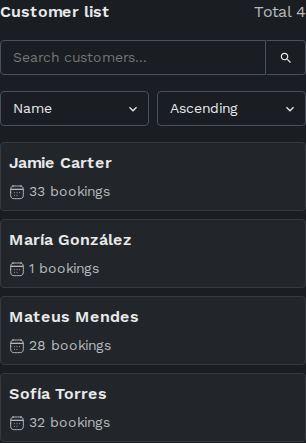
Use the two dropdowns below the search bar to change the order — sort by Name or by number of Bookings, in Ascending or Descending order. Sorting by bookings, descending, is a quick way to spot your regulars.
Step 2: Search for a specific customer
Use the search bar at the top of the list to find someone quickly. It matches names, email addresses, and phone numbers as you type.
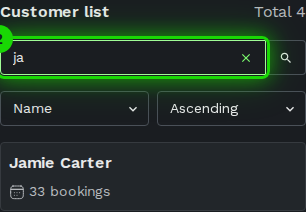
If someone booked with just an email and no name, you can still find them by searching for any part of their email address.
Step 3: Open a customer profile
On a wide screen, the first customer's profile is already open on the right. Click any other customer card to switch to them. At the top you'll see their full name, along with their phone number and email address.
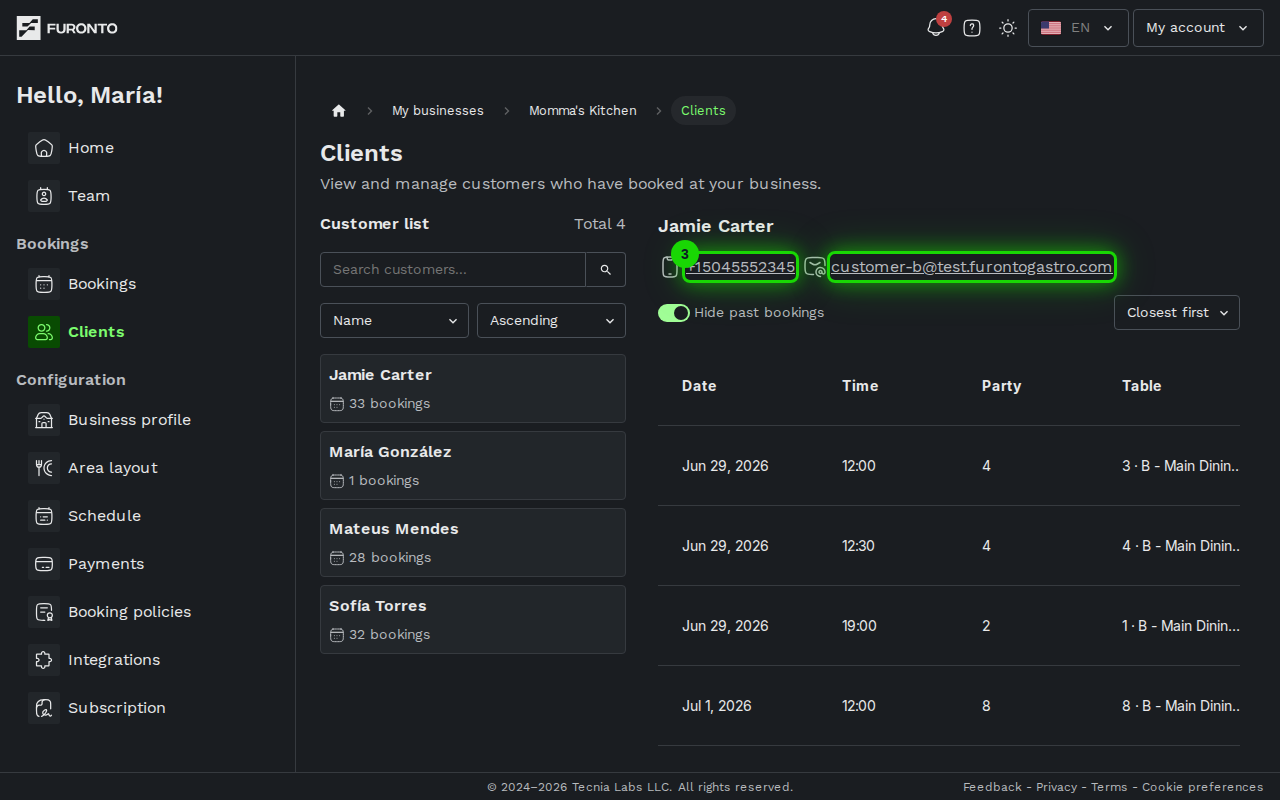
The phone number and email are clickable. Tap the phone number on a mobile device to call them, or click the email to open a new message in your mail app.
Step 4: Review their booking history
Below the contact details is a table of this customer's bookings, one row each, with columns for date, time, party size, table, service, and current status — confirmed, completed, cancelled, pending, or no-show. If the columns don't all fit, scroll the table sideways to see the rest.
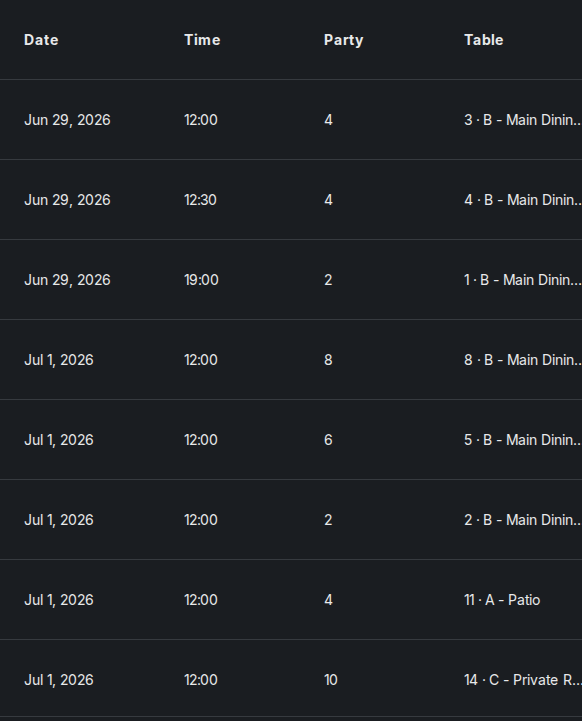
By default, Hide past bookings is on, so you only see upcoming visits. Switch it off to include their past bookings too. The Order dropdown on the right lets you list bookings closest-first or farthest-first.
Step 5: Mark a customer as VIP
Next to the customer's name at the top of their profile is a star. Click it to mark that customer as VIP — the star fills in green. Click it again to remove the flag. Only owners and managers can change it.
Once someone is a VIP, the green star shows up wherever their name appears in your dashboard: on their card in this customer list, on their booking cards and in the booking details on the Bookings page, and on the waitlist. It's an at-a-glance cue so anyone on your team can spot a VIP and give them a little extra attention.
Marking someone VIP doesn't change anything about how bookings work — it doesn't give priority, unlock times, change prices, or send any notification. It's a private, internal label for your team only; customers never see it. Use it however suits your business.
Tips and best practices
- Use the search bar for large customer lists — It's faster than scrolling, especially once you have hundreds of customers.
- Check a customer's history before a call — Knowing whether someone is a first-timer or a regular changes how you talk to them.
- Watch for no-shows — A booking status of no-show means the customer didn't arrive. If you see this repeatedly for the same person, you may want to follow up.
- Click phone numbers and emails directly — On mobile, tapping a phone number starts a call. On desktop, clicking opens your default mail or calling app.
Troubleshooting
A customer isn't appearing in the list
Solution: Only people who have made at least one booking at your business show up here. If someone just created an account without booking, they won't appear. Check the Bookings page to confirm they have a booking on record.
The contact details are missing
Solution: Customers only need to provide the information required to complete their booking. If a phone number or email is missing, it means they didn't share that detail at booking time. There's nothing to fix — just reach out through whichever channel they did provide.
The page is empty
Solution: If your business is new, you won't see any customers until someone books. Share your booking link with customers and the list will fill in as reservations come in.